
Interviews
Phone mode: your phone as a remote
Use your phone as a remote and a bigger answer screen for the LastRound AI desktop app 5.3. Scan a QR code, hide the app on your laptop, and press Answer, Capture or End from your phone while it shows the interviewer's words and the answer.
What Phone mode does
Phone mode is new in desktop 5.3. The desktop app still listens to the interview and writes the answers. Your phone becomes its remote and a second, bigger screen.
| On your phone | What it means |
|---|---|
| Interviewer | A live transcript of what the interviewer is saying right now. |
| The answer | The answer in large text, as it is written. Code answers show in a code box. |
| Start session | Starts the interview session on your laptop, the same as Start in the app. |
| Answer | Asks for an answer to the question you just heard, the same as Answer in the app. |
| Capture screen | Captures your laptop screen and answers what is on it. |
| Stop | Shows while an answer is being written. Stops it. |
| End session | Ends the interview on your laptop, the same as End in the app. |
| Disconnect phone | Disconnects only the phone. The interview keeps running on your laptop. |
Nothing to install, any network
The phone uses a web page, app.lastroundai.com/companion, in its normal browser. There is no app to install. It works over the internet, so the phone does not need to be on the same Wi-Fi as your laptop. It works on iPhone and Android.
Connect your phone
It takes about 30 seconds. You can do it before the interview or while a session is running.
Step 1: Open Phone mode on your laptop
In the desktop app, click ⋮ on the toolbar and choose Phone mode. Then click Connect a phone.Step 2: Scan the QR code with your phone
Point your phone's camera at the QR code and open the link. No camera? Open app.lastroundai.com/companion on your phone, type the 10-character code shown under the QR code, and tap Connect. The code works once and expires after 5 minutes. A timer next to it shows the time left.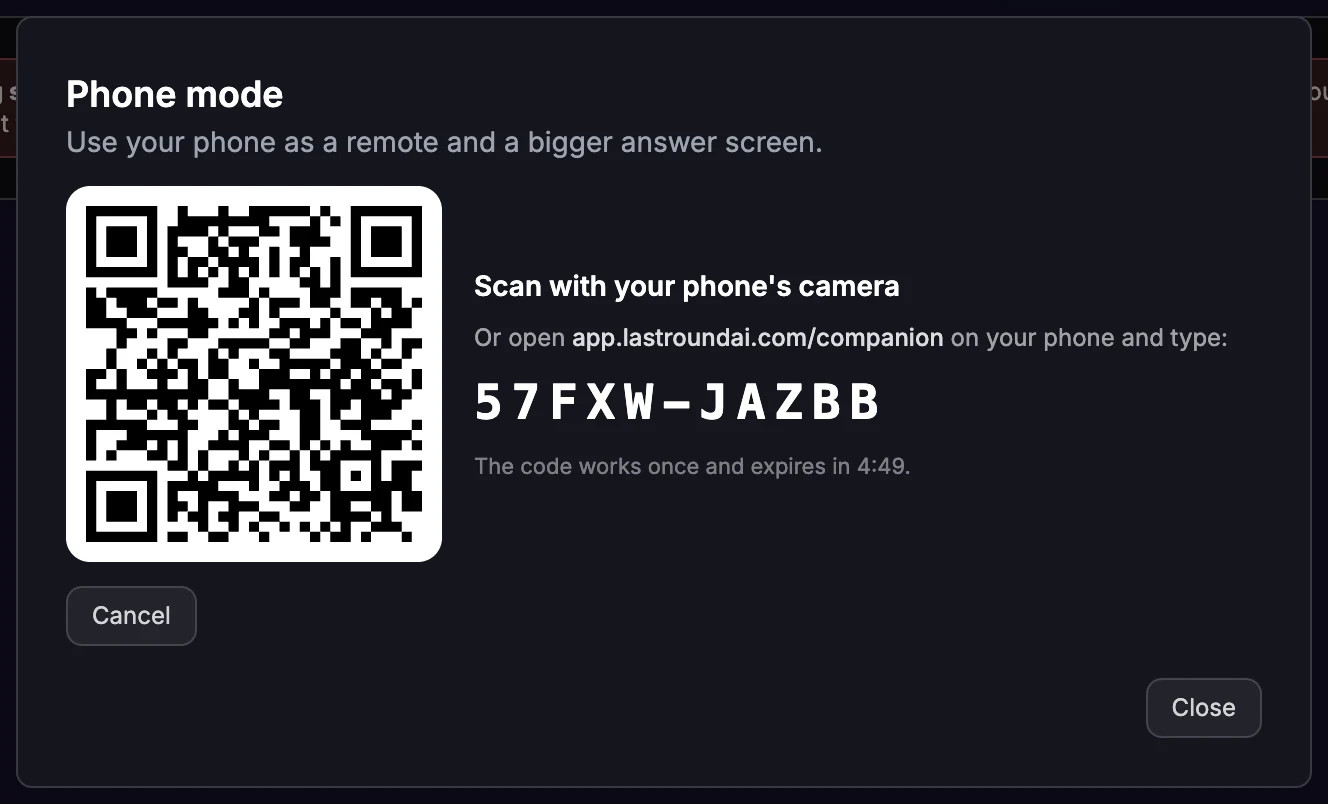
⋮ → Phone mode → Connect a phone. Scan the code, or type it on the phone. Step 3: Choose what to do with the laptop window
The laptop shows Your phone is connected. Click Hide the app on this laptop to use only your phone, or Keep it visible to use both. A green phone icon appears on the toolbar while the phone is connected.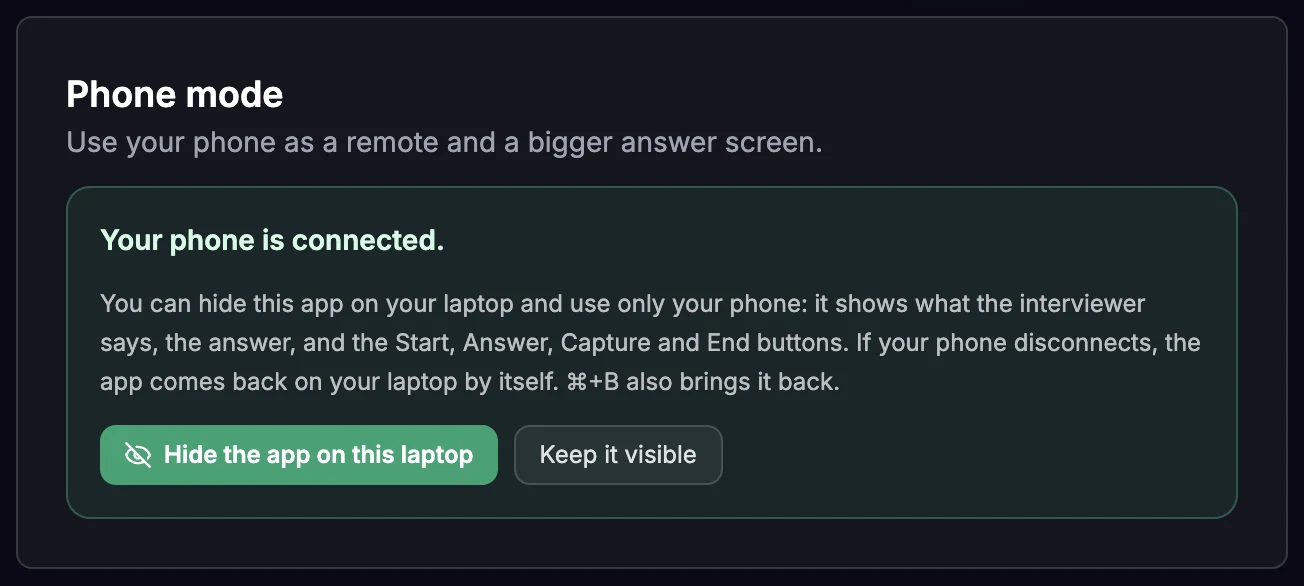
Hide the app on this laptop, or keep it visible.
Getting the app back on the laptop
Press ⌘/Ctrl + B to show the app again at any time. If the phone disconnects, the app comes back on your laptop by itself, so you are never left without it.
During the interview
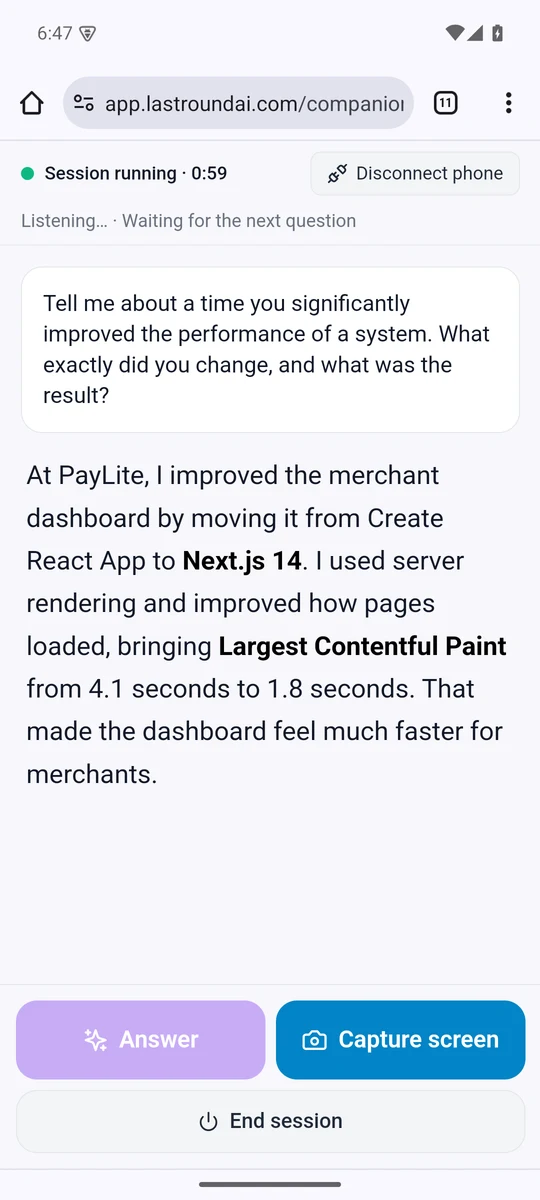
Use the phone exactly like the buttons in the app. Each tap runs the same action on your laptop.
Step 1: Start
Tap Start session, or press Start on the laptop. If the laptop needs you first (for example to confirm the interview details or close the tour), the phone says so, such as Confirm the interview details on your laptop to start.Step 2: Listen and answer
The Interviewer line shows their words as they speak. When they finish a question, tap Answer. The answer appears on the phone in large text. For a question on screen, tap Capture screen: the laptop captures its screen and answers it.Step 3: End
Tap End session. The interview ends on your laptop and billing stops. Phone mode ends with the interview, and the phone shows Session ended. To connect again, scan a new QR code.
Disconnect is not End
Disconnect phone only disconnects the phone. The interview keeps running on your laptop and keeps using credits. To finish the interview, tap End session.
Privacy and security
Phone mode is built so that only your phone can read what it shows.
| Question | Answer |
|---|---|
| Can someone else join? | No. Each code works once, so only one phone can ever join a pairing. Unused codes expire after 5 minutes. |
| Is it encrypted? | Yes. The question and answer are encrypted with a key made from the code. Our servers only pass the encrypted data along. |
| Is anything stored? | Phone mode does not store questions or answers. Your normal interview history is unchanged. |
| Is the phone visible on screen share? | The phone is a separate device, so it is not part of your shared screen. |
Troubleshooting
What the messages mean and what to do.
| Message | What to do |
|---|---|
| The code expired before it was used. Show a new one to try again. | Open ⋮ → Phone mode and click Connect a phone again for a new code. |
| Phone not responding. Is its screen on? | The phone stopped answering for about 45 seconds. Wake the phone and keep the page open. |
| Phone disconnected because the interview ended. | Normal. Phone mode ends with the interview. Connect again for the next one. |
| Phone mode ended after 15 minutes without activity. | The laptop was asleep, or the app was not responding, for 15 minutes. Connect again. |
| Phone disconnected because you signed out. | Sign in to the desktop app again, then connect again. |
| Disconnected from the phone. | The phone left the page or tapped Disconnect phone. Connect again if you still need it. |
Still stuck?
Phone mode needs desktop 5.3 or later. Check your version under Settings → Help → About. For other problems, see the troubleshooting guide.
Still stuck?
Signed in? Open a ticket under Account → Support in the app. Otherwise use the contact form or email. Tell us what you tried, which page of this guide you were on, and your operating system or browser.