
Desktop app: download, install and permissions
Install the LastRound AI desktop app on macOS or Windows, sign in, grant the one permission it needs, and learn the overlay before your first live interview.
Watch the video
More videosBefore you start
| Requirement | Details |
|---|---|
| Account | A LastRound AI account (see Create your account). You sign in inside the app with Google or email. |
| macOS | macOS 13 Ventura or later. Separate builds for Apple Silicon (M1 and newer) and Intel Macs. |
| Windows | Windows 10 or Windows 11, 64-bit. |
| Permissions | Screen Recording (called Screen & System Audio Recording on macOS). It lets the app hear the call and capture the screen. The microphone is optional: only Also listen to me uses it. Windows usually needs no prompt. |
| Audio | No virtual audio driver is needed. The app captures meeting audio from your computer directly. |
| Credits | At least 1 credit to start a session. Sessions bill 1 credit per minute, rounded up. A session that ends within 30 seconds is not billed. |
Which Mac do I have?
Step 1: Open the download page
Sign in to the web app, then open Download Desktop App. You can reach it from the dashboard banner (Download for macOS / Download for Windows), from the sidebar card Interview invisibly, or directly at the link below.Step 2: Pick your build
The page shows Recommended for your Mac or Recommended for your Windows with a Download button. Click Show other platforms to see every build.
A downloaded macOS disk image in the Downloads folder. Windows users get an .exe instead. - Mac (Apple Silicon):
LastroundAI-macOS-arm64-<version>.dmg - Mac (Intel):
LastroundAI-macOS-x64-<version>.dmg - Windows:
LastroundAI-Windows-<version>.exe
Already installed?
The same page has an Open the app button that launches the installed desktop app instead of downloading again.- Mac (Apple Silicon):
Step 3: Open the .dmg and drag LastRound AI to Applications
Double-click the downloaded.dmgin your Downloads folder. In the window that opens, drag the LastRound AI icon onto the Applications folder. Eject the disk image when done.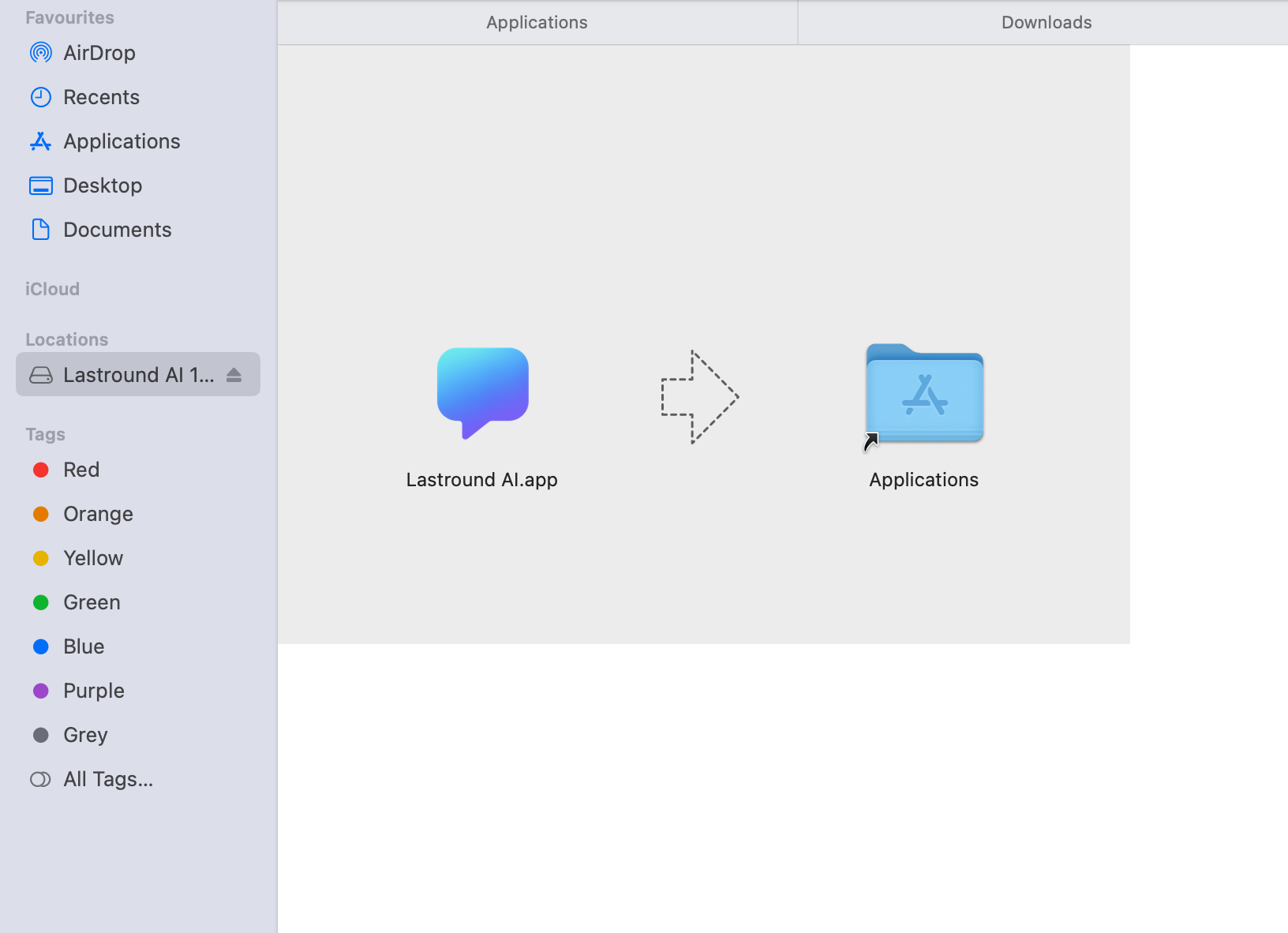
Drag the app into Applications. Run it from Applications, not from the disk image. Step 4: Open it the first time
Open Applications, double-click LastRound AI. macOS shows a one-time notice that the app was downloaded from the internet. Click Open.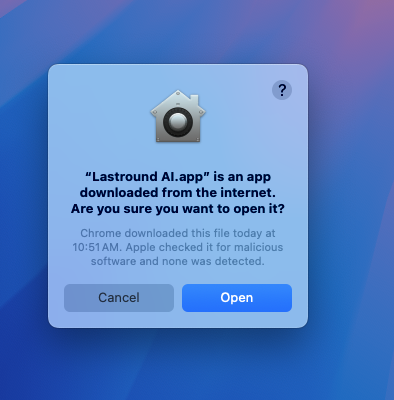
This Gatekeeper notice appears once. Click Open. No Open button?
Right-click (or Control-click) the app in Applications and choose Open, then confirm. On newer macOS versions you may instead need System Settings → Privacy & Security, scroll down and click Open Anyway.
Step 5: Run the installer
Double-clickLastroundAI-Windows-<version>.exe. If Windows SmartScreen shows Windows protected your PC, click More info, then Run anyway. The installer lets you choose the installation folder, then offers to launch the app when it finishes.- A Start menu and desktop shortcut named LastRound AI are created.
- Windows does not normally prompt for any permission. Live interviews hear the call through your computer's sound, not your microphone, so microphone settings do not affect them.
First run: the setup wizard
Step 6: Welcome
Read the three value props, tick I agree to the Terms of Service and Privacy Policy and click Continue. There is also a Prefer to watch? 3-minute walkthrough link.Step 7: Sign in
Use Continue with Google (a Google window opens inside the app) or enter your email and password and click Sign in. New users can click New here? Create an account, fill in full name, email and a password, click Create account and enter the 6-digit code from the Check your email screen. Your credits, resume and preferences sync with your account.No API key needed
Older guides mentioned generating an API key on the website. That step no longer exists; you simply sign in inside the app.Step 8: Permissions
This step is headed One quick permission, with the note Required for live interviews. Nothing is recorded or uploaded, and your microphone is not used. It lists one card: Screen & System Audio Recording on macOS, Screen recording on Windows. It turns green with a Granted badge once it is on. Click Allow, or the System Settings link under it to jump straight to the right page. Re-check status re-reads it without a restart. Switching Screen Recording on makes macOS want a fresh process, so the step offers One-time relaunch: with a Relaunch now button, and setup resumes on this same step afterwards. The next section explains what macOS and Windows show.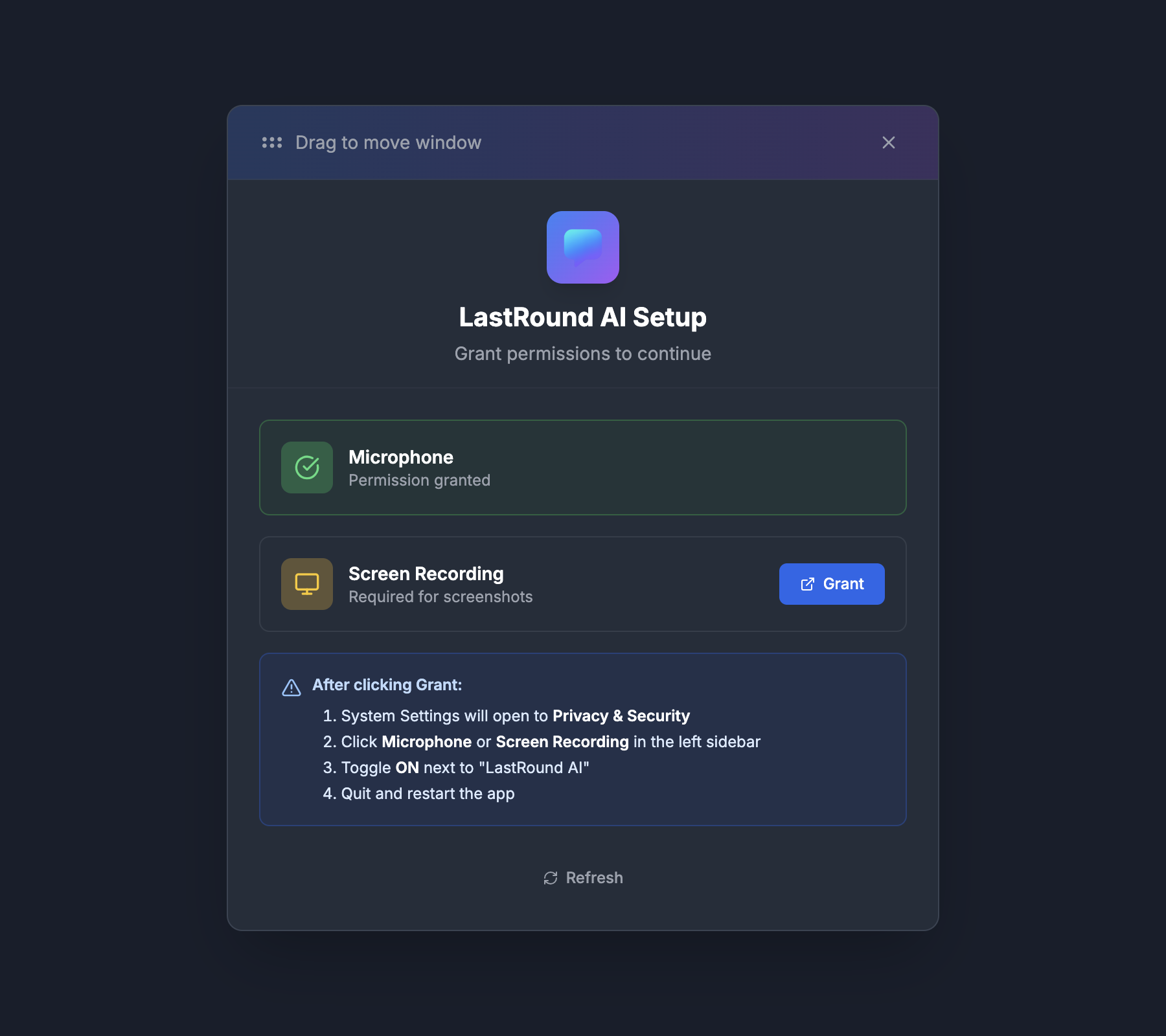
The permission gate that appears before the wizard when Screen Recording is off. Click Grant next to Screen Recording. You may have met a different permission screen already
If Screen Recording was off at launch, the app shows a gate before the wizard even starts: the same LastRound AI Setup title, but with the line Grant permissions to continue and a Grant button per permission, plus Refresh at the bottom. It also lists Microphone, but only Screen Recording has to be on to continue. That screen prints the exact name your operating system lists the app under, and you must switch on that row rather than the one you expect. The first-run walkthrough covers it step by step.Step 9: How you'll use it
Four keys run everything: ⌘/Ctrl + B hide or show the overlay, Space get an answer, ⌘/Ctrl + H screenshot a problem, ⌘/Ctrl + Arrows move the overlay. Space on its own works only while the LastRound AI window is in front; ⌘/Ctrl + Enter gets an answer from any app. Then choose when answers appear: When I ask (recommended) or Automatically when the interviewer stops speaking. You can change this later with Auto-Response under ⋮ → Interview Setup → How the AI answers.Step 10: Quick checks
Headed You're ready for your real interview. Pick Your role and Interview language (answers come back in this language), then three optional checks: See how live suggestions work (Start), Try a screen question (Open) and Check what others see (Check), which shows a QR code so you can confirm from your phone that LastRound AI is not visible on a shared screen. Click Finish setup. To reach these three again later, run Replay setup from Settings → Help → Quick Actions. It reopens this same wizard at step 1. New free accounts also get a free demo interview card after setup.
Permissions in detail
macOS
Step 11: Screen recording (and system audio)
macOS asks to let the app record this computer's screen and audio. Click Open System Settings, switch on LastRound AI under Screen & System Audio Recording, then return to the app. macOS applies this permission only to a freshly launched app, so the wizard shows One-time relaunch with a Relaunch now button. Click it; setup resumes where you left off.
Click Open System Settings. 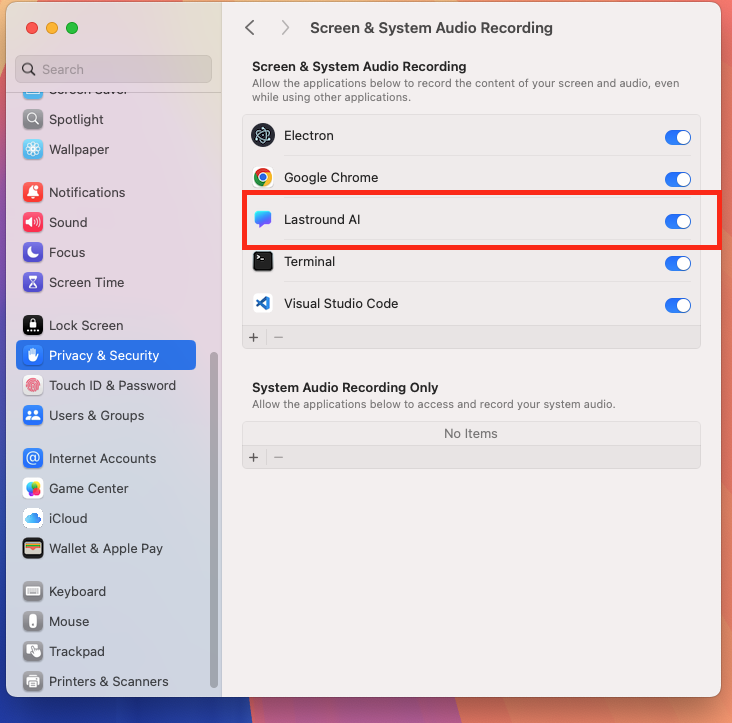
Switch on LastRound AI, then relaunch the app. Granted it, but the app still says not granted?
Quit the app fully (⌘ + Q) and open it again; macOS only re-reads Screen Recording permission on launch. Then click Re-check status in the wizard, or Settings → Help → Quick Actions → System check later.Step 12: Microphone (optional)
Live interviews do not need your microphone to hear the interviewer. One feature uses it: Also listen to me in Interview Setup, which transcribes what you say so follow-up answers stay consistent. macOS asks the first time it needs it. The demo interview runs in your browser, so the browser asks for the microphone there, not the app. Click Allow. To change it later open System Settings → Privacy & Security → Microphone and switch on LastRound AI.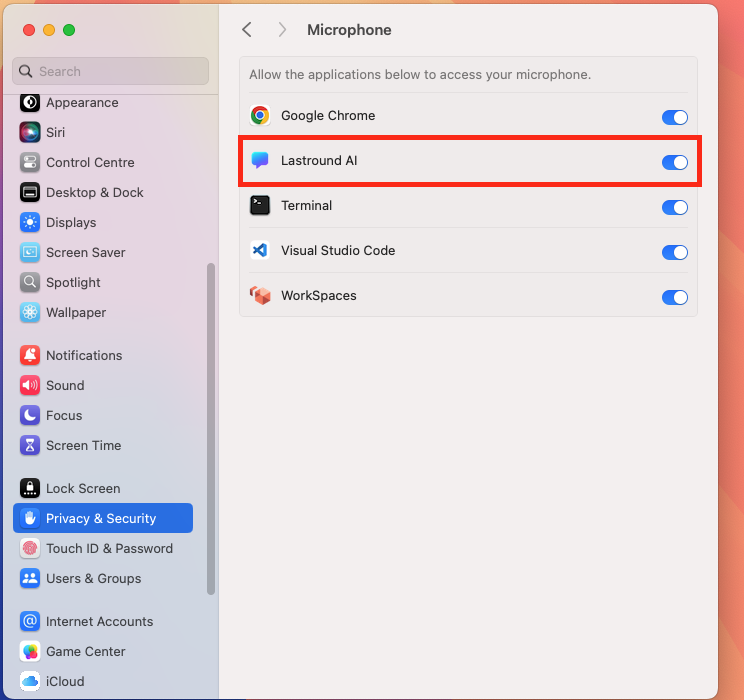
System Settings → Privacy & Security → Microphone.
Windows
Step 13: Screen capture and microphone
Windows grants screen capture to desktop apps by default. The microphone is optional, as on macOS. If you use Also listen to me, check Settings → Privacy & security → Microphone and make sure Microphone access and Let desktop apps access your microphone are on.- If screenshots fail, check that antivirus or endpoint software is not blocking screen capture.
- Meeting audio is captured from the default playback device. Keep the meeting on your normal speakers or headphones; no Stereo Mix or virtual cable is required.
Meet the overlay

| Control | What it does |
|---|---|
| Start / End | Start shows Confirm interview details, then opens the session (billing begins at 1 credit per minute) and turns into End with a timer. Pressing Answer before Start also starts the session. There is one interview mode: the same session hears the interviewer and answers anything you capture from the screen, coding problems and online tests included. End closes the session and settles the credits. |
| Answer | Greyed out until there is something to answer: a transcript, a new captured screenshot, or a typed Ask prompt. Click it, or press ⌘/Ctrl + Enter or ⌘/Ctrl + Space from any app, or Space when the LastRound AI window is in front. While the answer streams the same button reads Stop. |
| Capture | Add a screenshot to the queue (⌘/Ctrl + H). It captures the display your mouse pointer is on. A badge shows how many are queued. Available before Start. |
| Ask | Type your own question or prompt instead of using the transcript. |
| Hide / Show | Appears once a session is running. Collapse or expand the answer panel. |
| Speaker and microphone icons, timer | Appear once a session is running. The speaker icon pauses or resumes listening to the call. The microphone icon shows whether Also listen to me is hearing you. The timer shows elapsed time. |
| Credits chip | Your balance. Add and Subscribe buttons appear when you are low. |
| ⋮ (Quick Settings) | Settings, Interview Setup (resume, domain, job description and answer style), Account & credits (not during an interview), Phone mode, Demo interview (new free accounts only) and Close App. |
| Move handle | Drag to move the overlay; ⌘/Ctrl + Arrows does the same from the keyboard. |
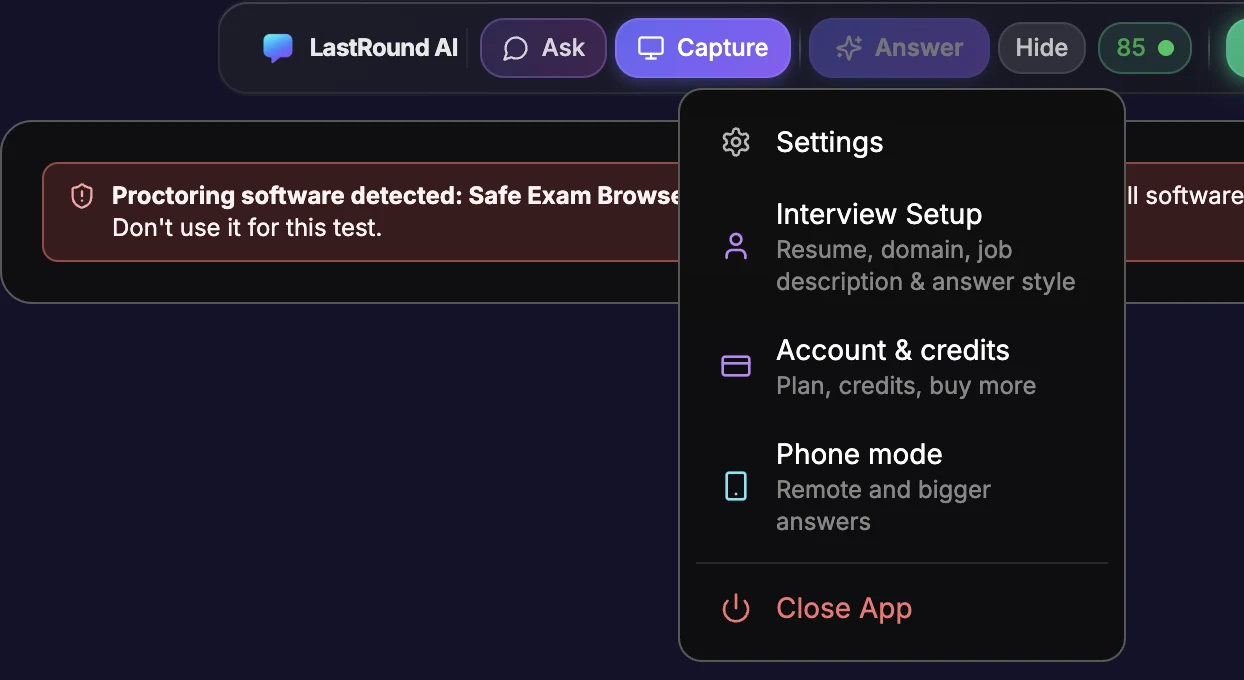
Invisible on screen share, but the cursor is not
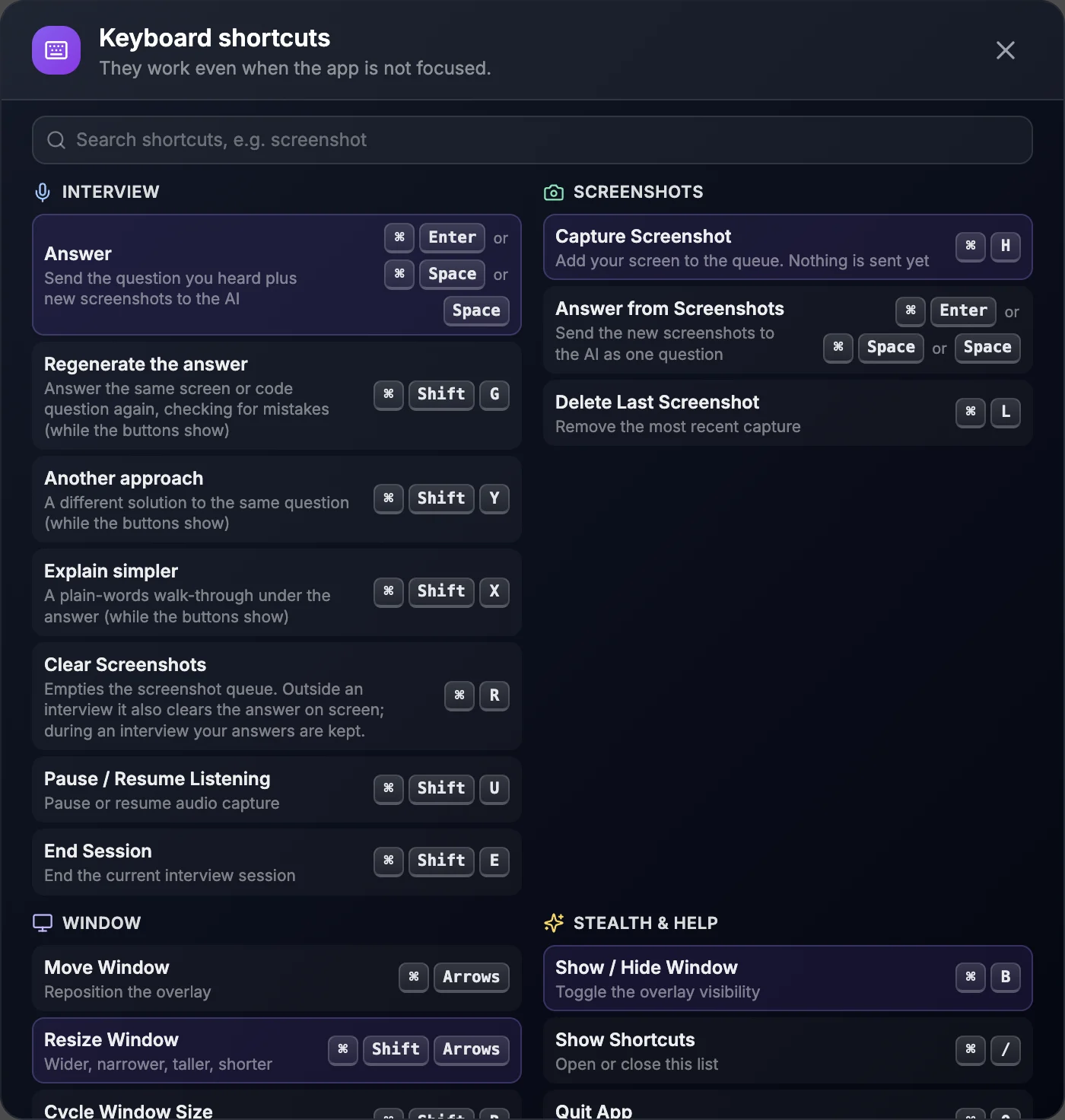
| Shortcut | Action |
|---|---|
| ⌘/Ctrl + Enter | Answer (⌘/Ctrl + Space works too; Space alone only when the app is in front) |
| ⌘/Ctrl + H | Capture screenshot |
| ⌘/Ctrl + B | Show / hide the overlay |
| ⌘/Ctrl + Shift + E | End session |
| ⌘/Ctrl + / | Show the full shortcut list |
The keyboard shortcuts reference lists every one, including moving and resizing the overlay and pausing listening.
Ready to use it in a real interview? Continue with the Live Interview Copilot guide.
Settings: app and account options
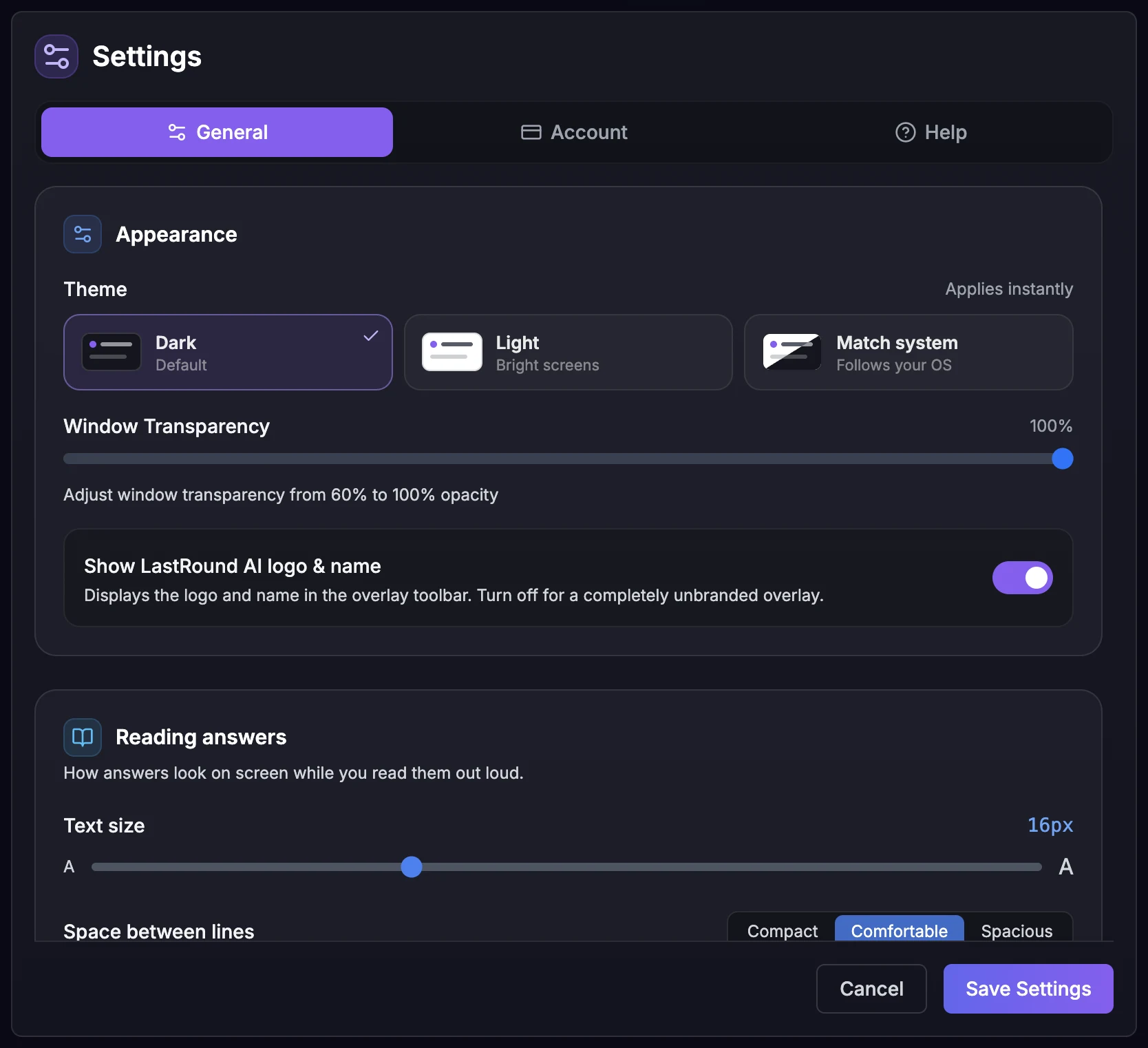
| Section | Options |
|---|---|
| Appearance | Theme (Dark, Light or Match system; applies instantly), Window Transparency (60 to 100%), Show LastRound AI logo & name (turn off for a completely unbranded overlay). |
| Reading answers | Text size, Space between lines and Answer layout, with a live preview. See Reading answers. |
| Before each interview | Shown only if you ticked I always interview for this same profile on the Confirm interview details screen. Turn back on brings the check back. |
| Section | Options |
|---|---|
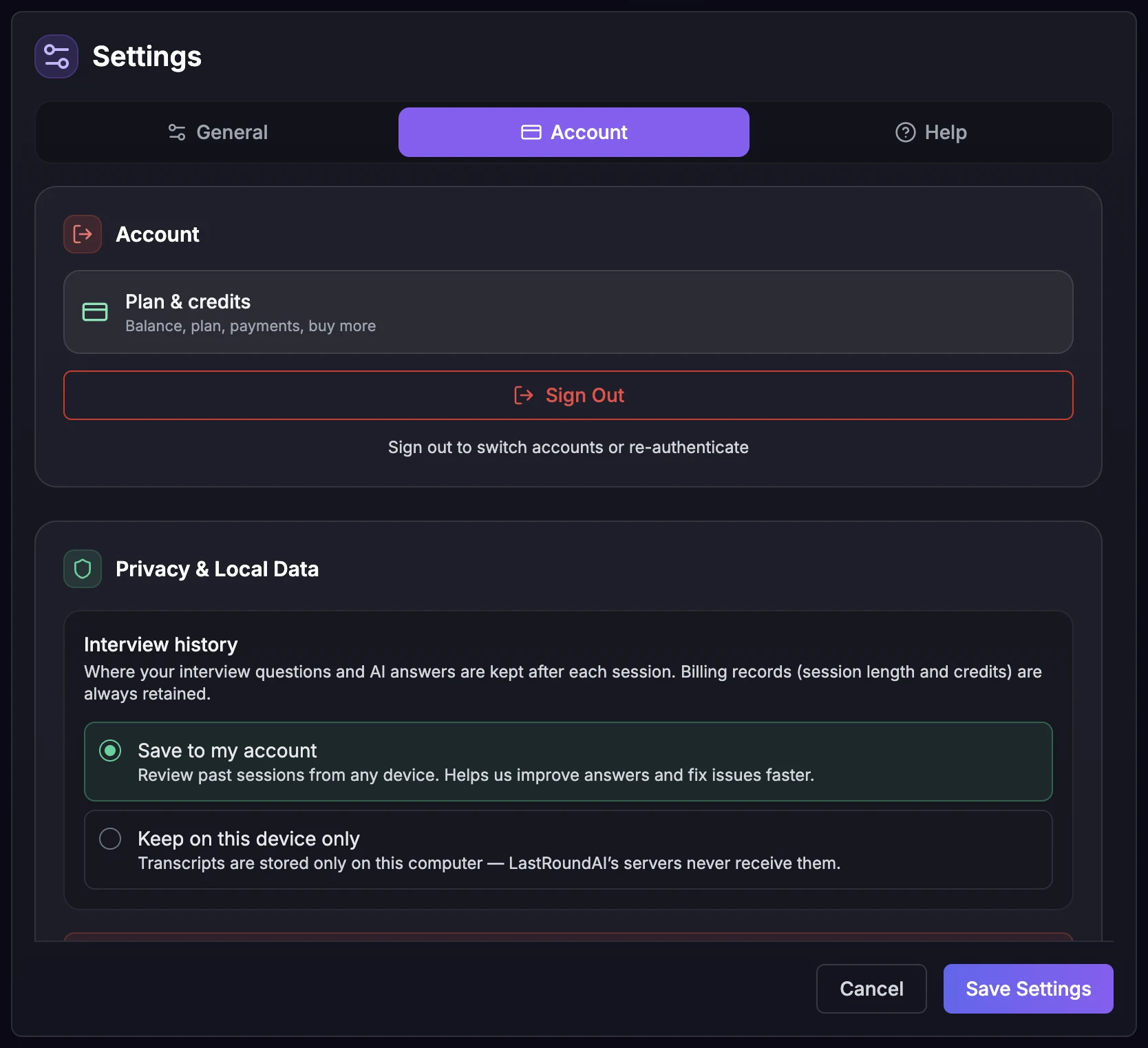
| Plan & credits | Opens the same Account & credits panel as ⋮ → Account & credits: balance, plan, payments and buying more. Not available during an interview. |
| Sign Out | Sign out to switch accounts or sign in again. |
| Privacy & Local Data | Interview history: Save to my account (review past sessions from any device) or Keep on this device only (transcripts stay on this computer; billing records are always kept). Record interview (screen + audio) where your account has it enabled, off by default and saved only to this device. Clear local data before uninstall. |
| Saved on this computer | Sessions kept on this device, marked On this device, with a button that opens the folder. This replaces the old History tab. |
| Section | Options |
|---|---|
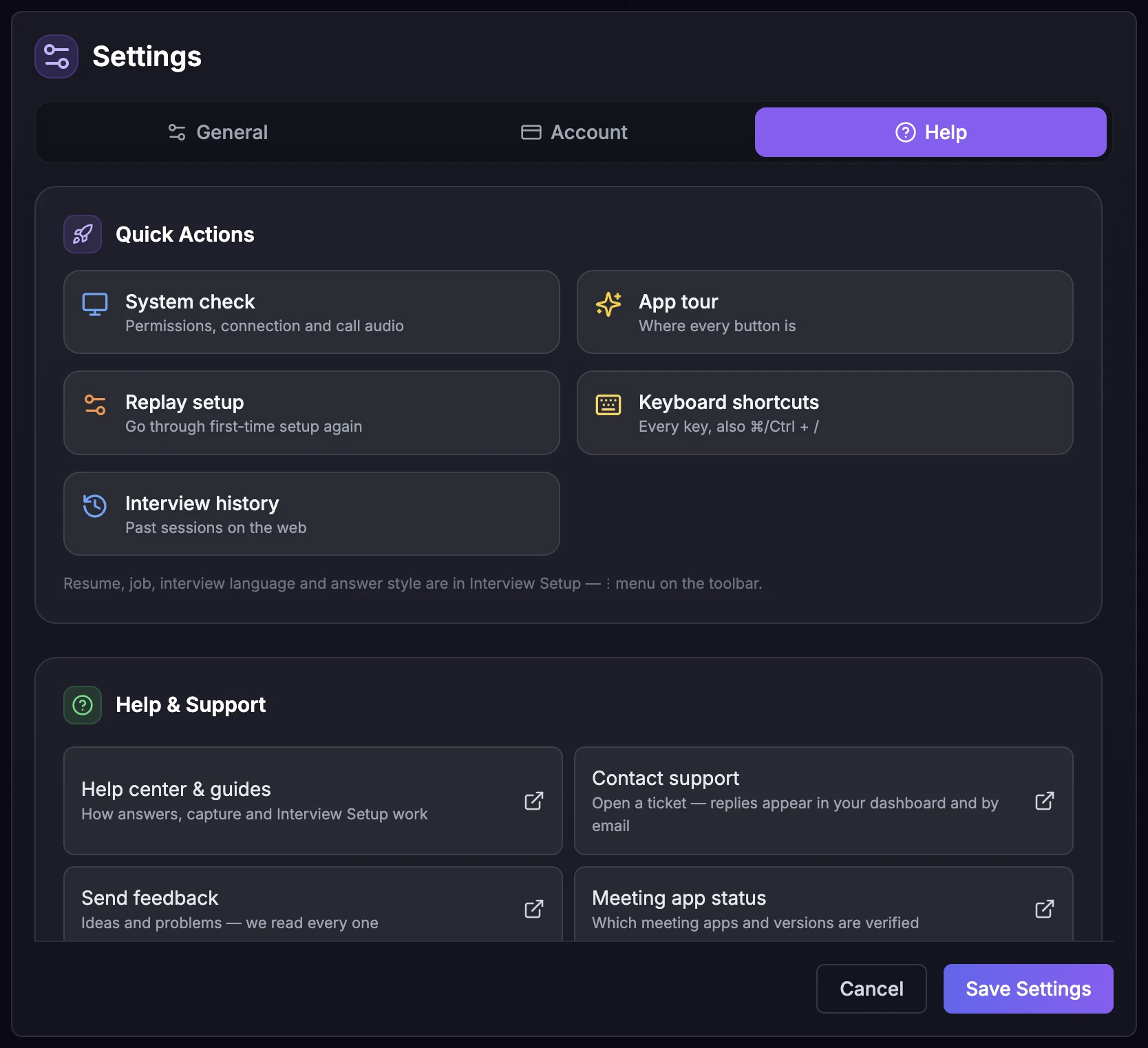
| Quick Actions | System check, App tour, Replay setup, Keyboard shortcuts and Interview history. The next section covers each one. |
| Help & Support | Help center & guides (this site), Contact support, Send feedback and Meeting app status. A note lists the meeting apps and browser assessments the app works with, and says it is not for proctored exams that make you install software. |
| About | Version number, Check for updates, Privacy policy and Terms. The app also checks for updates on launch and hourly. |
| More in your LastRound AI account | Links to mock interviews, the resume builder, job search and more on the web dashboard. They open in your browser. |
Where did the old menu items go?
Looking for the resume, domain or job description?
Quick Actions: System check, App tour, Replay setup, Keyboard shortcuts and Interview history
Looking for Test Drive?
Replay setup
Reopens the five-step setup wizard from step 1. The hint reads Go through first-time setup again. The overlay is replaced by the LastRound AI Setup window at full size, and you walk through Welcome, Sign in, Permissions, How you'll use it and Quick checks again, with Back and Continue in the footer and Finish setup at the end. Before 5.3 this button was called Replay onboarding.
| Question | Answer |
|---|---|
| Does it sign me out? | No. The sign-in step shows You're signed in instead of the form, with a Use a different account link if you actually want to switch. |
| Does it clear my resume or Interview Setup? | No. Nothing is deleted. It only replays the wizard. |
| Does it ask for permissions again? | It re-checks Screen Recording live. If it is already granted it shows a Granted badge and is left alone; if not, it gets an Allow button. It does not force a fresh system prompt. |
| Is this the LastRound AI Setup permission gate? | No, that is a different screen. The Grant permissions to continue gate only appears at launch when Screen Recording is off. Replay setup opens the wizard, whose permissions step is the one headed One quick permission. |
| Why would I use it? | To change the When should answers appear? choice, to hand the machine to someone else with Use a different account, or to reach the three optional checks including Check what others see, which lives only on the wizard's last step. |
Getting out of it again
App tour
A short guided tour over the real toolbar. A card appears next to the control it describes, with a spotlight around it and the rest of the screen dimmed. Next and Back move through it, Skip tour leaves at any point, the last step reads Finish, and Esc closes it. It has eight steps: Ask, Capture, Answer, the credits pill, Start and End, the ⋮ menu, the move handle, and a closing step. Where a control has a shortcut, the card shows it with the right modifier for your system.
| Point | Detail |
|---|---|
| When it appears by itself | Once, for new users, after you sign in and finish setup. |
| Replay it any time | Settings → Help → Quick Actions → App tour. It does not open while a session is running, so end the session first. |
| Nothing is sent while it runs | Pressing Capture or Answer during the tour does not take a screenshot, call the AI or start a billed session. ⌘/Ctrl + B still really hides and shows the overlay. |
| The shortcut list is one key away | ⌘/Ctrl + / opens the full, searchable list at any time. It is also under Settings → Help → Keyboard shortcuts. |
System check
Opens a System check window that checks four things: Operating system, Screen recording permission, Microphone permission and Connection to LastRound AI. The top line reads Everything the app needs is in place. or says how many things to fix, and each problem has an Open settings button. The microphone row only matters for Also listen to me. Interviews listen to the call, not your mic. A Call audio row points you to Interview Setup → Audio check. Click Done to close it. Run it after changing anything in System Settings.
System check is not the stealth check
Keyboard shortcuts
Opens the searchable Keyboard shortcuts sheet, the same one ⌘/Ctrl + / opens from anywhere. The keyboard shortcuts reference lists every key.
Interview history
Opens your past sessions in the web app, already signed in. Sessions you keep on this device only are listed under Settings → Account → Saved on this computer instead.
Set up the interview before you start
Step 14: Upload your resume
Under Your resume click Choose file and pick a PDF, DOC, DOCX or TXT (up to 10 MB). It is parsed on this device and the AI answers as you, from what is in it. Replace swaps it for another file; the new resume replaces the old one completely.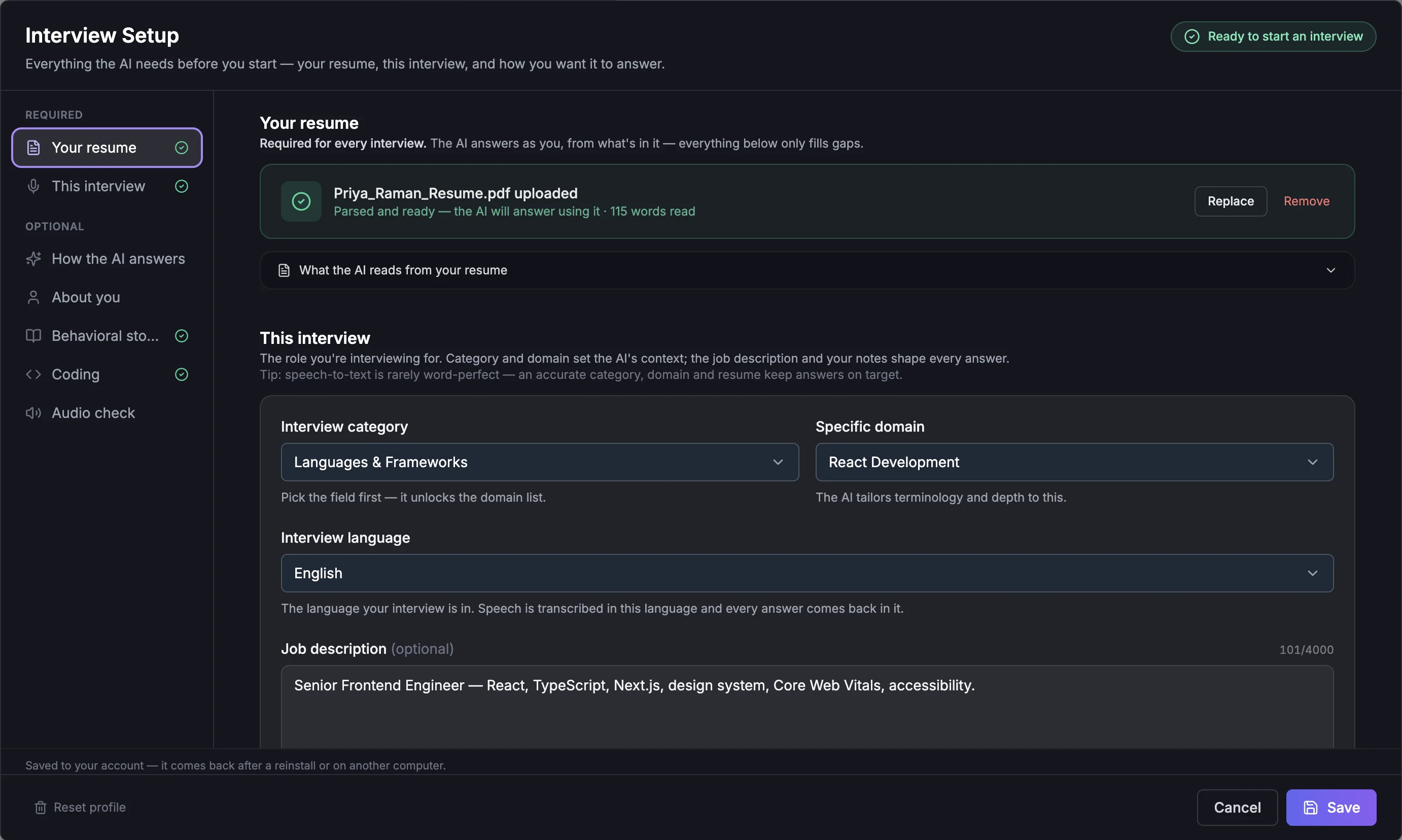
⋮ → Interview Setup with the required parts filled in. Step 15: Pick the category and domain, then paste the job description
Under This interview choose Interview category, then Specific domain. Paste the posting into Job description (optional, up to 4,000 characters) and add anything else in Your instructions (optional, up to 1,000 characters). Click Save.Every field explained
The Interview Setup guide covers all seven sections, including Answer beyond my resume, answer length and tone, Auto-Response, About you and the behavioral story bank.Step 16: Run the audio check
The app hears your interviewer through your computer's sound, not your microphone. Under Audio check, play any sound on the computer (a YouTube video or your meeting app's speaker test) and click Test meeting audio. We can hear your computer's audio means the interview will be captured the same way. We can't hear anything comes with the fix for your Mac or PC. It stops by itself after about 20 seconds and uses no credits.Do it before every important interview
A permission, a muted tab or a headset change can silence the app. The audio check guide lists every result and fix.
Worth ten minutes before a real interview
Your setup is saved to your account
What's new in 5.3
| Change | What it means for you |
|---|---|
| Phone mode | ⋮ → Phone mode. Your phone becomes a remote and a bigger answer screen, and you can hide the app on your laptop. |
| Demo interview | A free 3-minute interview with an AI interviewer in your browser, once, for new free accounts. It replaces Test Drive. |
| Settings in three tabs | General, Account and Help. Interview history and Keyboard shortcuts moved from the ⋮ menu to Settings → Help. Replay onboarding is now Replay setup. |
| Proctoring warning | A red banner under the toolbar when known proctoring exam software is running. |
| Everything else | Easier-to-say answers, the Press Answer tip, a red auto-answer warning, solid cards in the Light theme and an updated app engine. |
What's new in 5.0
| Change | What it means for you |
|---|---|
| One interview mode | The Live and Code chips, the coding setup dialog and the ⌘/Ctrl + 1 and ⌘/Ctrl + 2 shortcuts are gone. Spoken questions and screen captures are answered in the same session. |
| The screen is the question | Capture the screen (⌘/Ctrl + H), then press Answer. The AI works out what is on screen and answers in the right shape: code with the approach and complexity, a test question with its working, a job description with likely questions. 5 to 10 seconds is normal. |
| Regenerate, Another approach, Explain simpler | Three buttons under every screen answer and every answer with code. Shortcuts: ⌘/Ctrl + Shift + G, ⌘/Ctrl + Shift + Y and ⌘/Ctrl + Shift + X, while the buttons show. |
| About you, Prepared answers, Memory | New Interview Setup section. The AI uses your exact answers to common questions, builds on the answers you prepared, and remembers earlier rounds. See About you. |
| Interview recap | After you press End you get a short recap with the questions likely to come next. See Interview recap. |
| Reading answers and Light theme | Text size, line spacing and answer layout, plus a Light theme, in Settings. See Reading answers. |
| Still in your interview? | If nothing is heard for 5 minutes after Start, or nothing new happens for 10 minutes once the interview is going, the app asks. Click I'm here (or press the Answer key) to keep going, or End now. With no reply the session ends after 60 seconds to save credits. |
The screen questions guide has the details.
Keeping the app up to date
Step 17: Watch the toolbar
When a new version is out, an Update v… chip appears on the toolbar. Hover it (or the Restart chip later) to see What's new in v…, the release notes for that version, without leaving the app.Step 18: Download in the background
Click the chip to start the download. It runs in the background while you keep working, even mid interview, so you never have to stop and wait.Step 19: Restart when you're ready
Once the download finishes, the chip turns green and reads Restart. Click it once (it changes to Click again), then click again to confirm. The two clicks are deliberate: a single stray click can never end a live interview by accident.Step 20: It restarts itself
After you confirm, the chip shows Restarting…; the app closes and reopens on the new version on its own, usually within 10–15 seconds, with no installer window.Ignoring the chip is fine too
If you never click Restart, the update still applies automatically the next time you quit the app.
| What is on the toolbar | What it means |
|---|---|
| Nothing | Either there is no new version or you are already on it. The app checks when it launches and about once an hour after that, and it never checks in a development build. |
| Update v… | A violet chip with a download arrow. A new version exists and nothing has been downloaded yet: the download does not start until you click. Hovering reads Version … is available — downloads in the background while you keep working, followed by What's new in v… and the release notes for that version. |
| A spinner, a small bar and a percentage | The download is running. The chip is not clickable while this is on screen, and there is no word Downloading on it, only the percentage. Hovering reads Downloading the update in the background — keep working. Nothing about the app changes; keep using it. |
| Restart | Green, with a circular arrow. The download finished and the new version is staged and waiting. Hovering reads Update v… is ready — click to restart (or it applies on next quit). |
| Click again | You clicked Restart once. Click again to confirm. Leave it alone for about 12 seconds and it goes back to Restart. The two clicks exist so a stray click can never end a live interview. |
| Restarting… | The app is closing and reopening on the new version, usually within 10 to 15 seconds, with no installer window. Not clickable. Hovering reads Saving your session and restarting into the new version… |
| Retry update | Amber. The download failed. Hovering reads The update download failed — click to retry. Clicking starts the download again from scratch; nothing is broken and the version you are on is untouched. |
| Where | What it looks like |
|---|---|
| The wide banner | In the app's larger window you may also see a full-width banner: New version v… available with an Update now button, Updating to v… with a percentage, then Update v… downloaded — restart to apply with a Restart now button. Its ✕ dismisses it; the update still applies on your next quit. There is no button labelled Later, and one click on Restart now installs, with no Click again step. On the compact overlay you will normally only see the chip. |
| Settings → Help → About | Check for updates reads Checking… while it works and then Up to date if you are current. If an update is waiting it becomes Update to v… instead, then Updating… with a percentage, then Restart now, with the release notes under What's new in v… |
A restart is never actually required
What happens if an update lands mid-interview
Step 21: Uninstall
First run Settings → Account → Privacy & Local Data → Clear local data before uninstall to remove sign-in tokens, cached transcripts, on-device interview history, recordings, resume, screenshots, settings and caches from the computer. Then on macOS drag LastRound AI from Applications to the Trash; on Windows use Settings → Apps → Installed apps → LastRound AI → Uninstall.
Still stuck?
Signed in? Open a ticket under Account → Support in the app. Otherwise use the contact form or email. Tell us what you tried, which page of this guide you were on, and your operating system or browser.
We get back to you within 24 hours.