
Desktop keyboard shortcuts
Every keyboard shortcut in the LastRound AI desktop app 5.0, what it does, which keys work from any app, and why the keyboard is safer than the mouse in an online assessment.
Watch the video
More videosShortcuts work from any app
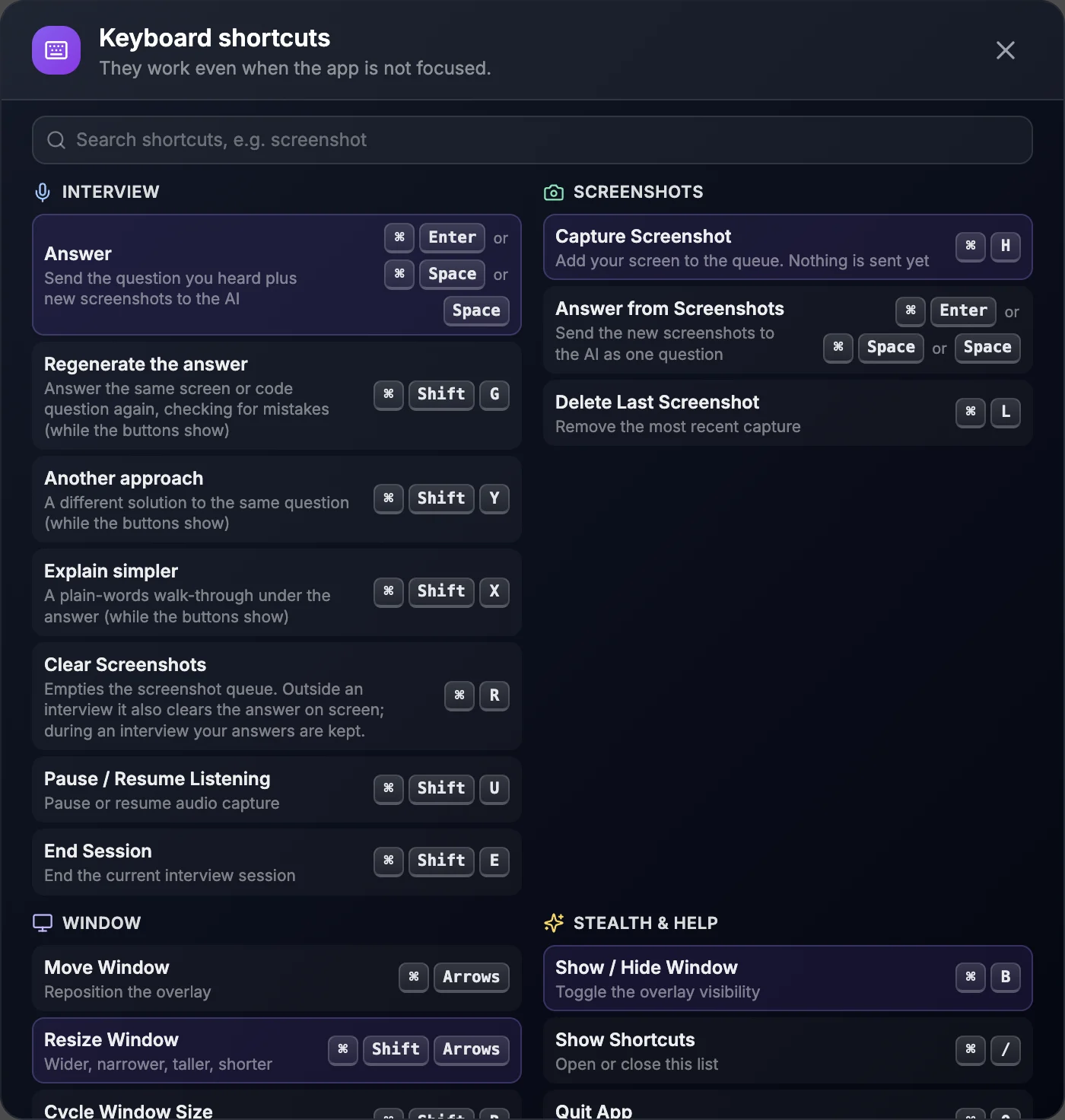
You can be typing in a code editor or watching a video call and still capture the screen or get an answer. The mouse never has to move. ⌘ is for macOS. On Windows, use Ctrl for every ⌘ key on this page.
Find the list inside the app
Keys you may already use in other apps
Capturing and answering
| Keys | Action |
|---|---|
| ⌘/Ctrl + H | Capture Screenshot. Adds your screen to the queue. Nothing is sent yet. |
| ⌘/Ctrl + Enter or ⌘/Ctrl + Space or Space | Answer. Sends the question you heard plus new screenshots to the AI. |
| ⌘/Ctrl + L | Delete Last Screenshot. Removes the most recent capture. |
| ⌘/Ctrl + R | Clear Screenshots. Empties the screenshot queue. Outside an interview it also clears the answer on screen. During an interview your answers are kept. |
| Keys | When to use it |
|---|---|
| ⌘/Ctrl + Enter | Recommended. Works from any app, on macOS and Windows. |
| ⌘/Ctrl + Space | Also works from any app. On macOS, ⌘ + Space opens Spotlight by default. It reaches LastRound AI only if you change or turn off the Spotlight shortcut in System Settings → Keyboard → Keyboard Shortcuts. |
| Space | Only when the LastRound AI window is in front. In any other app, Space just types a space. |
A long question on more than one screen
| Keys | Action |
|---|---|
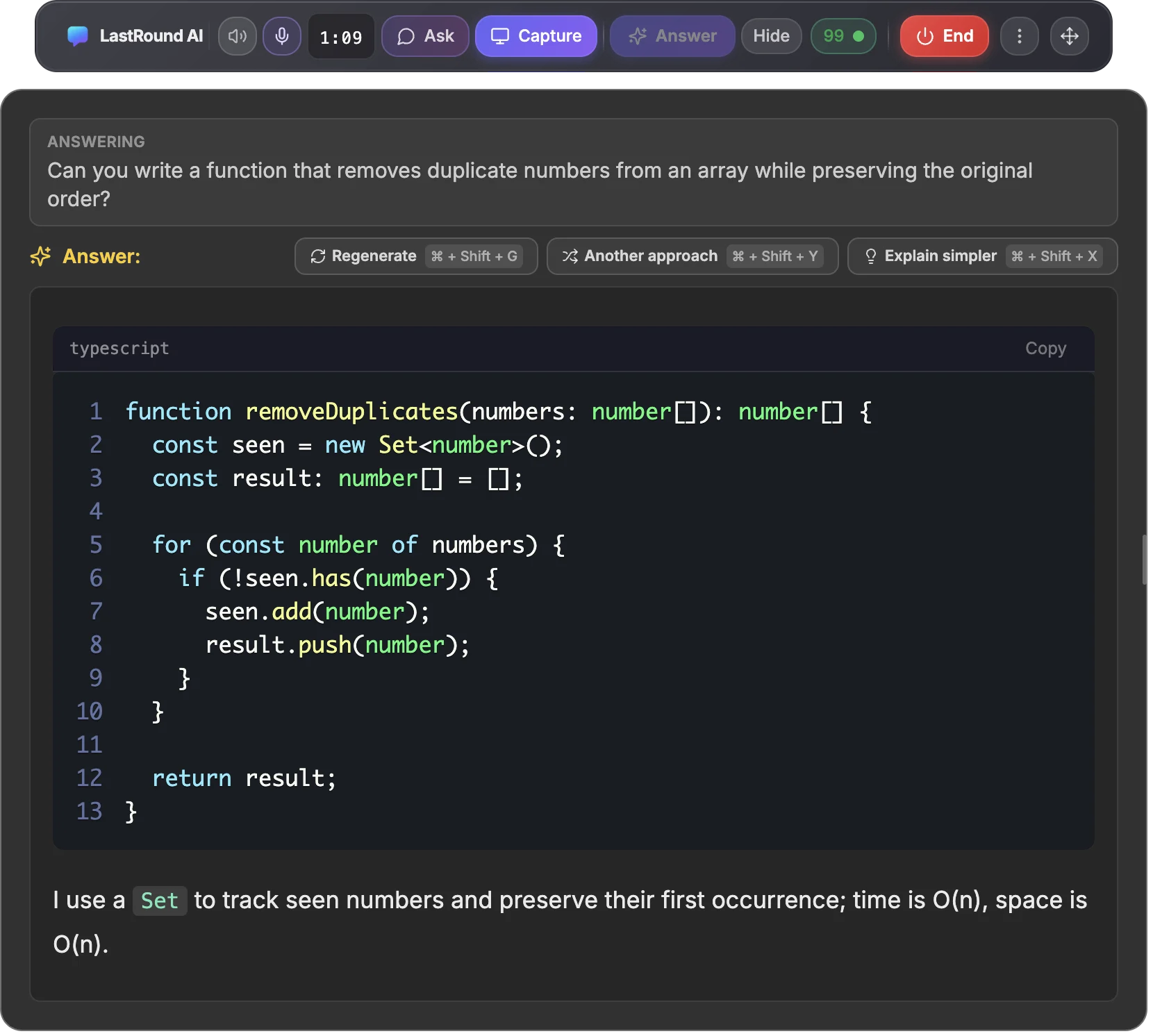
| ⌘/Ctrl + Shift + G | Regenerate the answer. Answers the same screen or code question again, checking for mistakes. |
| ⌘/Ctrl + Shift + Y | Another approach. A different solution to the same question. |
| ⌘/Ctrl + Shift + X | Explain simpler. A plain-words walk-through under the answer. |
The buttons show under every screen answer, and under a spoken or typed answer that contains code, during an interview. These three keys work only while the buttons are on screen. The rest of the time, other apps keep them (for example, Ctrl + Shift + G and Ctrl + Shift + X in VS Code).
Online assessments: use the keyboard, not the mouse
The overlay is hidden from screen share. Your mouse pointer is not: anyone watching your screen sees it move. These keys do everything without the pointer leaving the test. Learn them before the exam.
| Keys | Action |
|---|---|
| ⌘/Ctrl + H | Capture the question on screen |
| ⌘/Ctrl + Enter | Answer |
| ⌘/Ctrl + B | Hide or show the overlay |
| ⌘/Ctrl + ← → ↑ ↓ | Move the overlay |
| ⌘/Ctrl + / | Show the full shortcut list |
Check the platform's rules
Starting, pausing and ending

| Keys | Action |
|---|---|
| ⌘/Ctrl + Shift + U | Pause / Resume Listening (audio capture) |
| ⌘/Ctrl + Shift + E | End Session |
Ending a session stops billing
On version 4.0.16 or older, ⌘/Ctrl + 1 and ⌘/Ctrl + 2 started a session. 5.0 removed them, so they now do whatever they do in your other apps.
Hiding, moving and resizing the overlay
| Keys | Action |
|---|---|
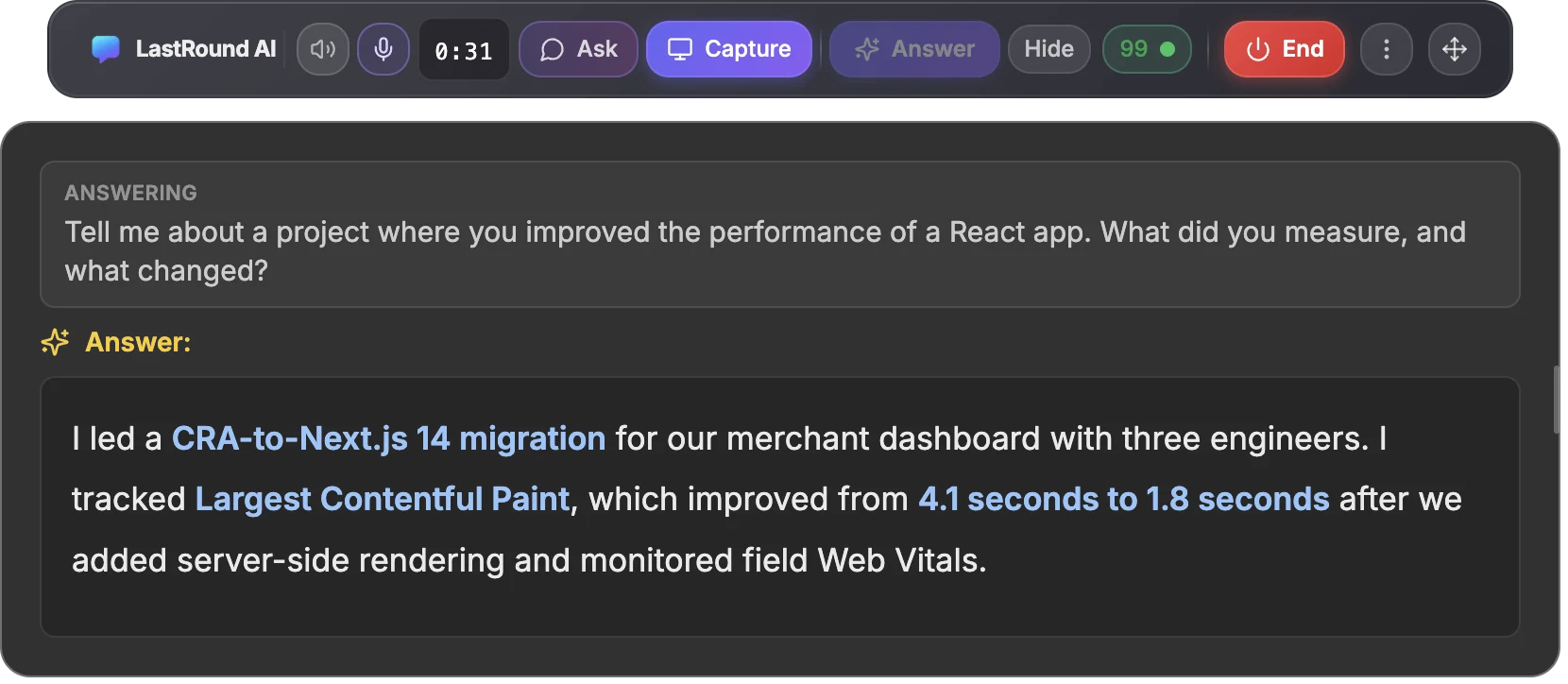
| ⌘/Ctrl + B | Show / Hide Window |
| ⌘/Ctrl + ← → ↑ ↓ | Move Window |
| ⌘/Ctrl + Shift + ← → ↑ ↓ | Resize Window: → wider, ← narrower, ↓ taller, ↑ shorter |
| ⌘/Ctrl + Shift + R | Cycle Window Size: compact, default, large |
The full list
| Keys | Interview |
|---|---|
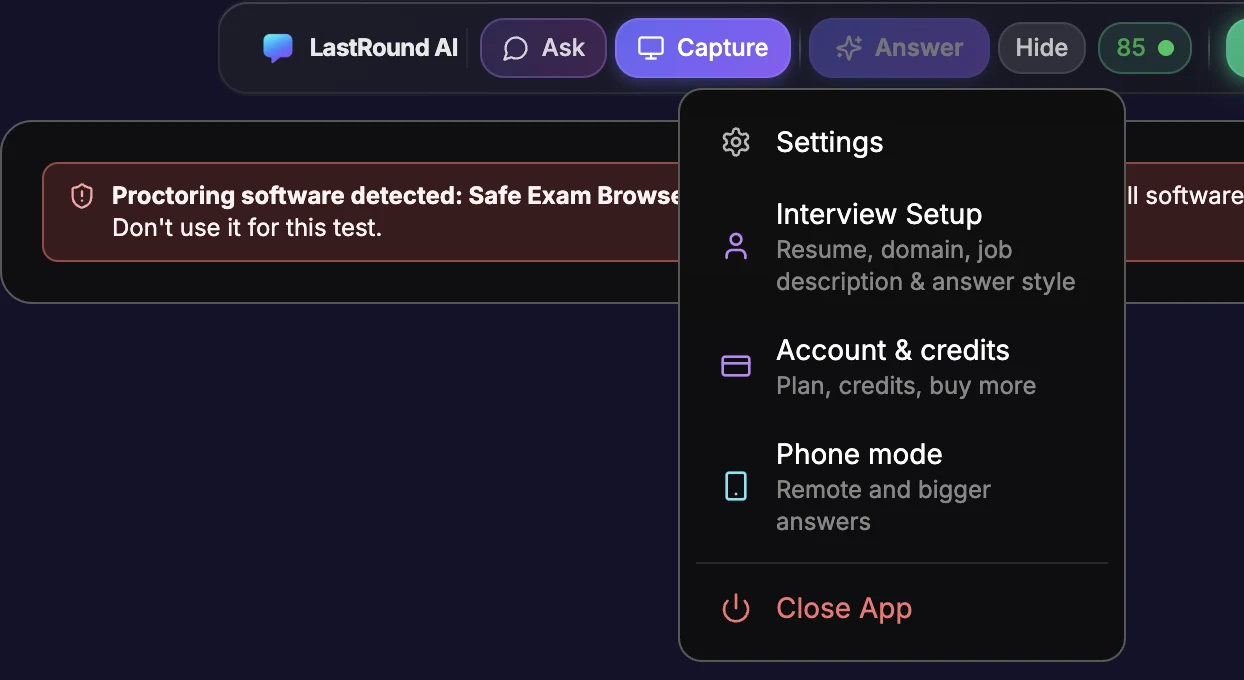
| ⌘/Ctrl + Enter or ⌘/Ctrl + Space or Space | Answer: send the question you heard plus new screenshots to the AI |
| ⌘/Ctrl + Shift + I | Ask: open the Ask box to type your own question or prompt. Enter (or ⌘/Ctrl + Enter) sends it, Esc closes it. From 5.4.1. |
| ⌘/Ctrl + Shift + G | Regenerate the answer (while the buttons show) |
| ⌘/Ctrl + Shift + Y | Another approach (while the buttons show) |
| ⌘/Ctrl + Shift + X | Explain simpler (while the buttons show) |
| ⌘/Ctrl + R | Clear Screenshots: empty the screenshot queue. During an interview your answers are kept. |
| ⌘/Ctrl + Shift + U | Pause / Resume Listening |
| ⌘/Ctrl + Shift + E | End Session |
| Keys | Screenshots |
|---|---|
| ⌘/Ctrl + H | Capture Screenshot: add your screen to the queue. Nothing is sent yet. |
| ⌘/Ctrl + Enter or ⌘/Ctrl + Space or Space | Answer from Screenshots: send the new screenshots to the AI as one question |
| ⌘/Ctrl + L | Delete Last Screenshot |
| Keys | Window |
|---|---|
| ⌘/Ctrl + ← → ↑ ↓ | Move Window |
| ⌘/Ctrl + Shift + ← → ↑ ↓ | Resize Window: wider, narrower, taller, shorter |
| ⌘/Ctrl + Shift + R | Cycle Window Size: compact, default, large |
| Keys | Stealth and help |
|---|---|
| ⌘/Ctrl + B | Show / Hide Window |
| ⌘/Ctrl + / | Show Shortcuts: open or close the list |
| ⌘/Ctrl + Q | Quit App |
Space on its own works only while the LastRound AI window is in front. The three follow-up keys work only while their buttons show. Every other key here works from any app. Next: the Live Interview Copilot guide explains what each control does.
Still stuck?
Signed in? Open a ticket under Account → Support in the app. Otherwise use the contact form or email. Tell us what you tried, which page of this guide you were on, and your operating system or browser.
We get back to you within 24 hours.