
Jobs
Auto-Apply and the Chrome extension
Auto-Apply finds roles that fit your resume, drafts a tailored application for each, and lets you approve before anything is sent. The LastRoundAI Job Copilot Chrome extension fills the employer's form in your own browser; you always click Submit.
How it works
Three parts work together: the Auto-Apply page in the web app (matching and tracking), the Chrome extension (form filling), and your own logged-in browser session on the job site. LastRound AI never asks for your LinkedIn or Indeed password.
| Part | What it does |
|---|---|
| Setup tab | Your target roles, locations, seniority, excluded companies, minimum match score, application details and saved answers. |
| Matches tab | Click Find matches to pull roles that meet your filters, ranked by match score. Apply opens the employer page and tailors your resume in the background. |
| Chrome extension | On the employer's application page a LastRound AI panel appears. Autofill this page fills the form from your profile and attaches the tailored resume. Review, then click the site's Submit. |
| Applications tab | Every application you prepared or submitted, with its status. |
| Allowance | Your plan includes a number of auto-applies per month, shown as applies left at the top of the page. After that, each extra application costs a small number of credits (currently 2), shown on the page. |
Desktop Chrome required for autofill
Matching and application drafting work in any browser, but autofill and auto-submit need the extension, which runs on desktop Chrome (and other Chromium browsers such as Edge). On a phone or in Safari the roles open for you to submit by hand.
Step 1: Open Jobs → Auto-Apply and click Add to Chrome
When the extension is not installed, the Setup tab shows a banner titled Auto-fill job applications — you review & submit with an Add to Chrome button. It lists the supported flows: LinkedIn Easy Apply, Indeed Quick Apply, Greenhouse, Lever, Ashby, SmartRecruiters and Recruitee, plus most company career pages.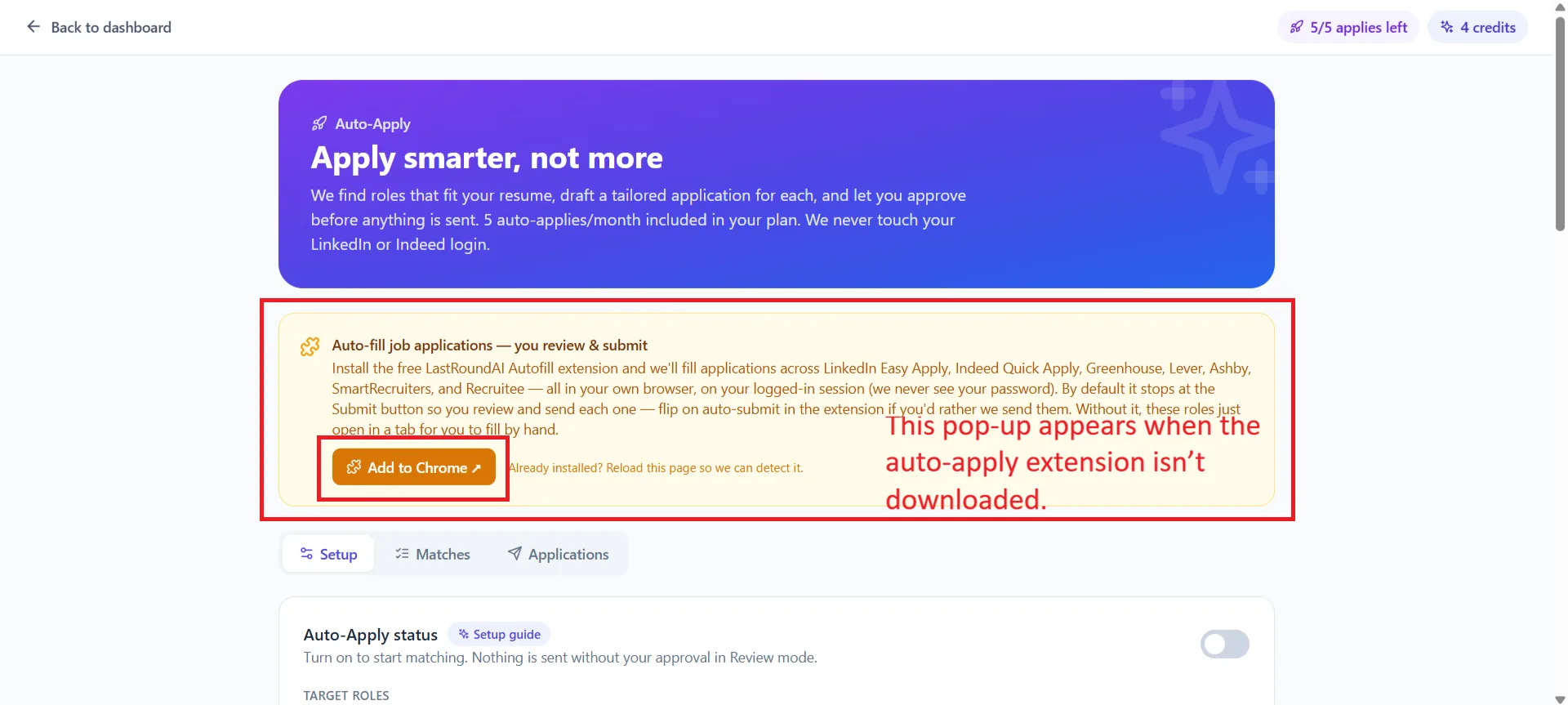
The banner disappears once the extension is detected. If you installed it already, reload the page. Step 2: Add it from the Chrome Web Store
The listing is called LastRoundAI Job Copilot: AI Auto Apply. Click Add to Chrome.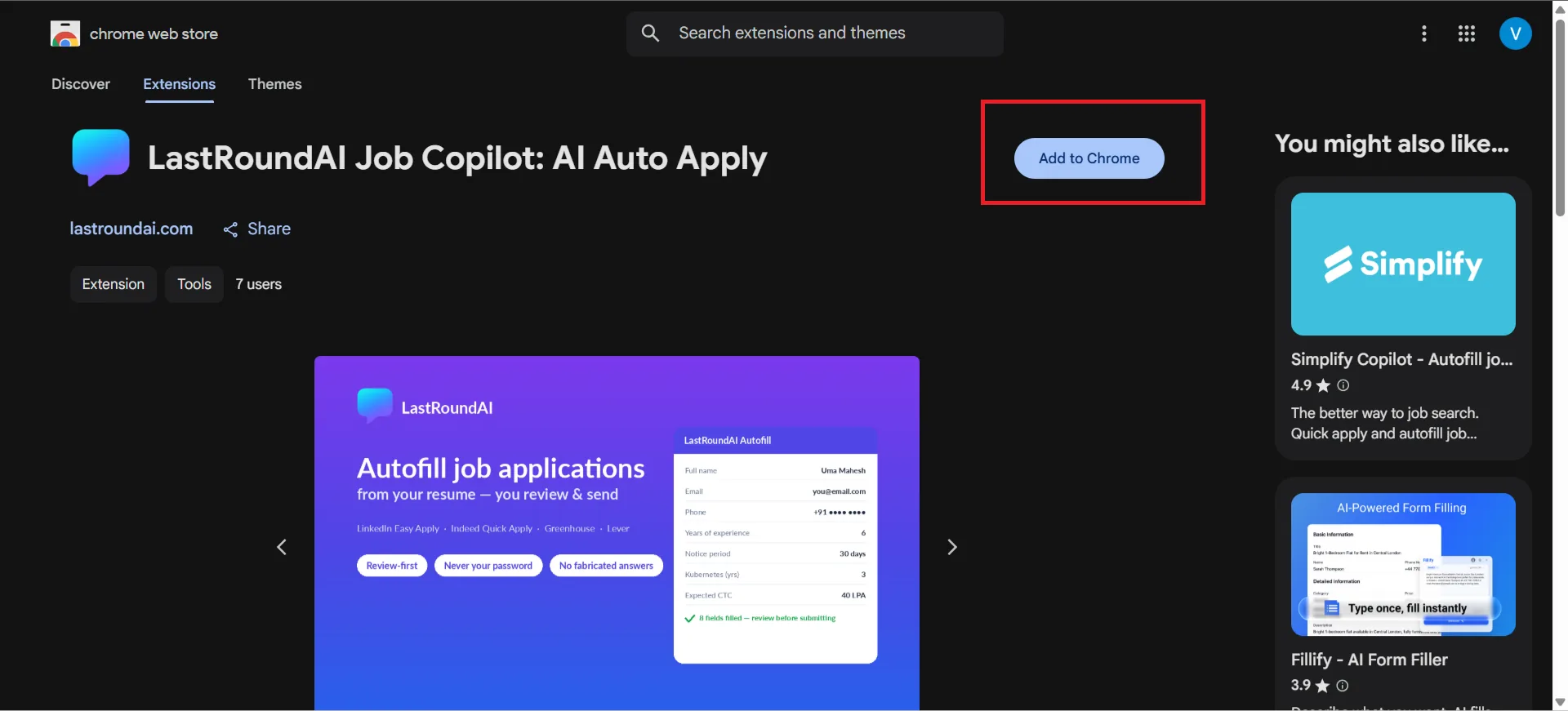
The Chrome Web Store listing. Chrome may show an extra confirmation
If Chrome's Enhanced Safe Browsing shows a Proceed with caution notice for a recently published extension, click Continue to install. The extension's code is reviewed by the Chrome Web Store before it is listed.Step 3: Confirm the permission prompt
Chrome asks to let the extension Read and change all your data on all websites. Click Add extension. This scope is needed because application forms live on every company's own careers domain; the extension only activates on pages that look like a job application and stays silent everywhere else. It never handles passwords or CAPTCHAs.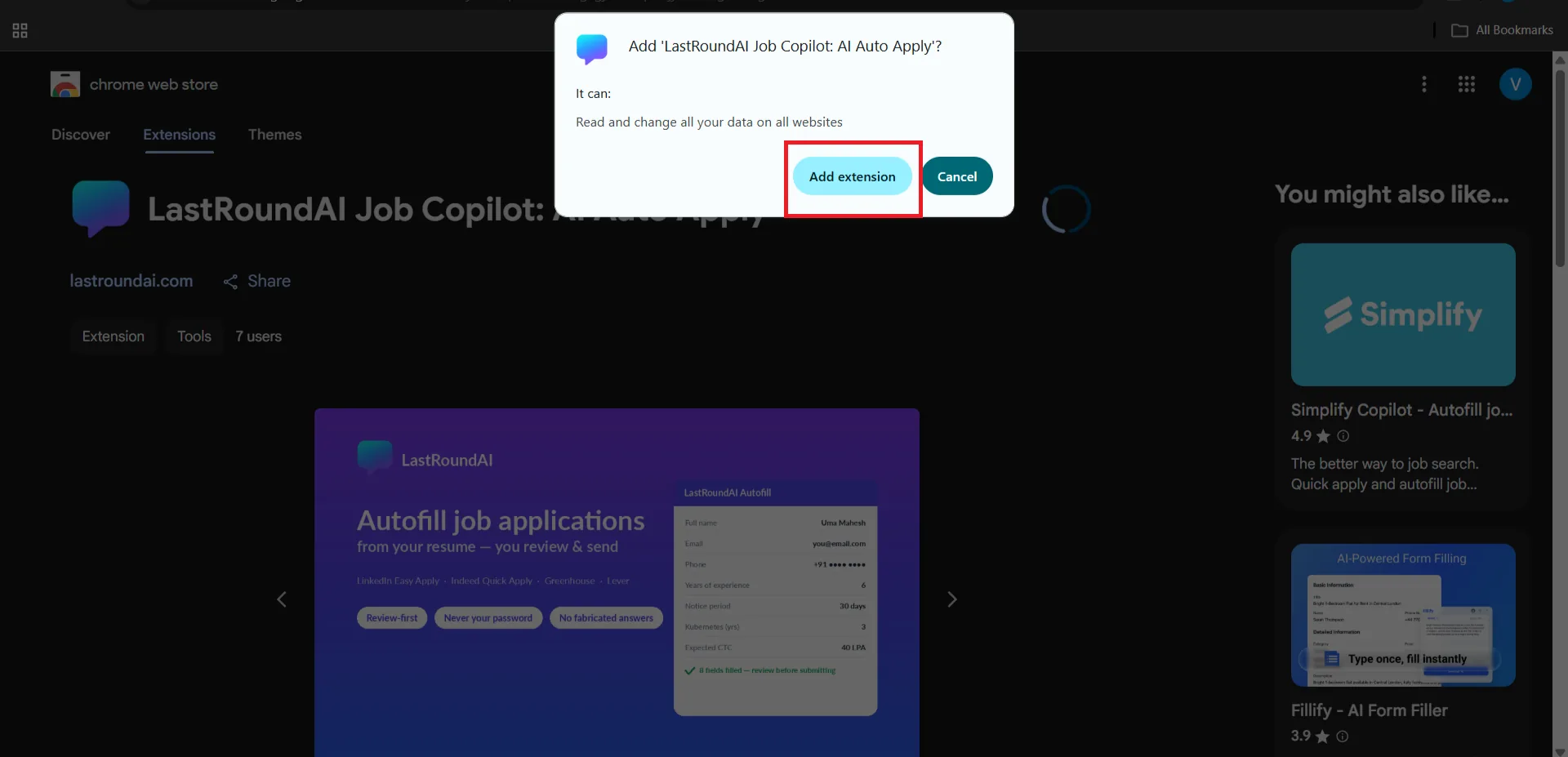
Click Add extension. 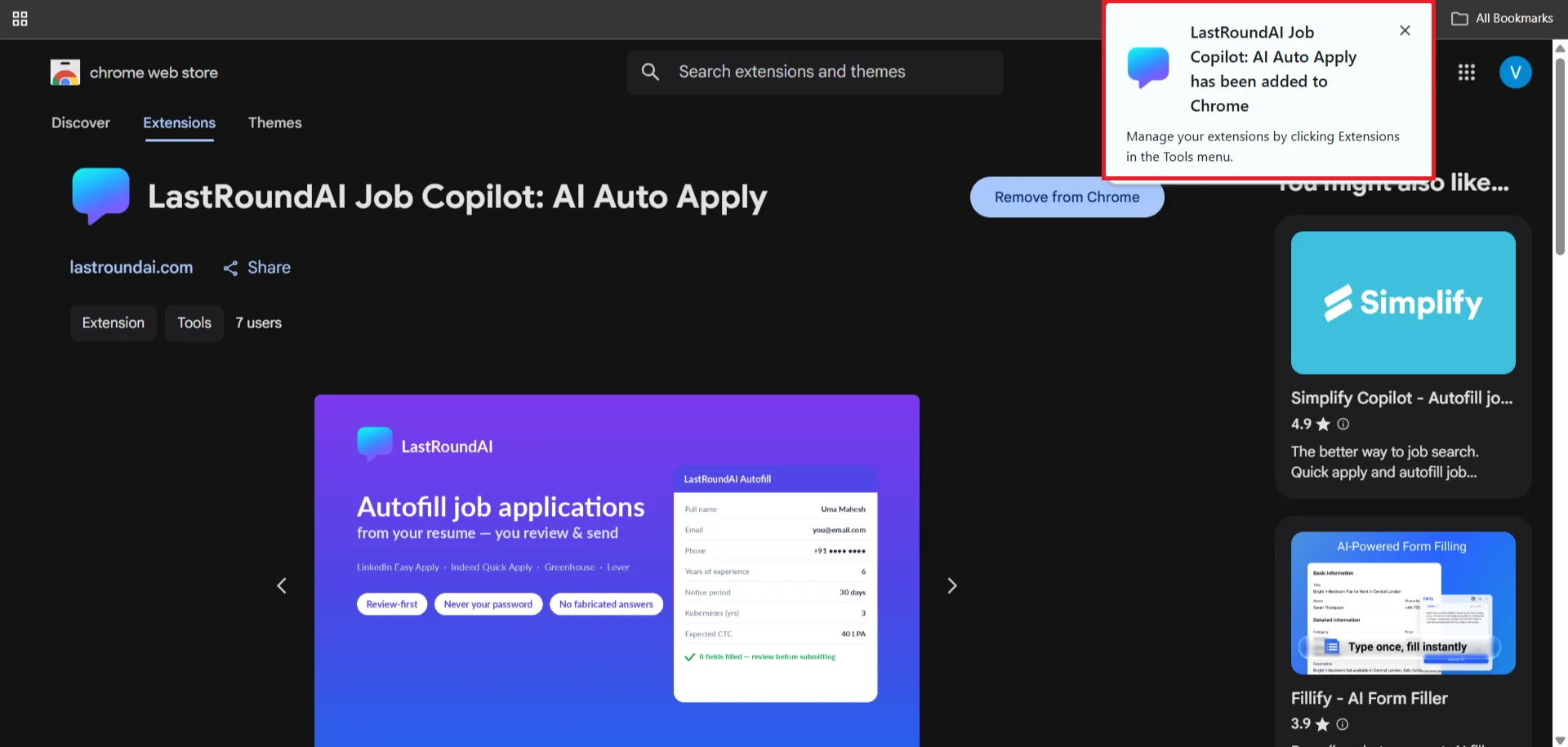
Installed. Return to the Auto-Apply tab and reload it. Step 4: Let it connect to your account
There is no separate login. With the web app open and signed in, the extension connects on its own. Click the extension icon to check: the popup reads Connected once your profile has loaded, or Open LastRound AI while signed in — the extension connects automatically if not. The popup also holds the toggles Auto-fill on page load, Review before submit (on by default), Auto-submit open ATS, Auto-submit Easy Apply / Quick Apply (both off by default) and a Daily auto-submit cap.
Step 5: Fill in the Setup tab
Switch on Auto-Apply status (nothing is sent without your approval in Review mode), then set Target roles, Locations (max 3), Seniority, Exclude companies, Min match score, Jobs per search and Employment type. Click Save preferences.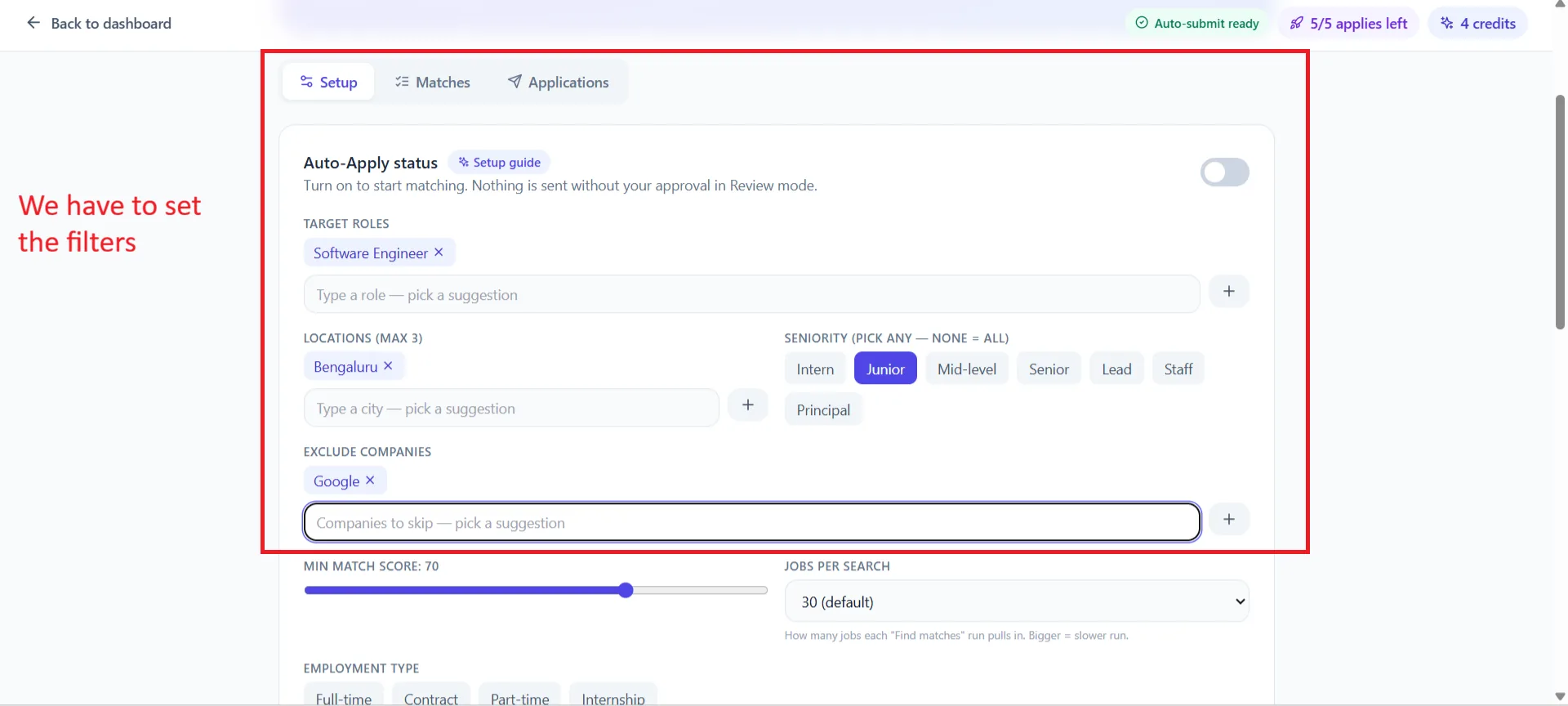
Filters decide which roles enter your matching queue. Step 6: Complete your application details
Further down, Application details holds the fields employers ask for: phone, current location, LinkedIn, GitHub, portfolio, years of experience and salary expectations. Upload or select a resume (Upload a resume, or build one) and add reusable Application answers for questions such as notice period. The extension panel shows a Complete your profile percentage and lists what is missing.
Step 7: Find matches
On the Matches tab click Find matches. A banner reports how many were found and added to your queue (and how many fell below your minimum match score). Open a role to see Why we matched you, requirements and the source. Use Save, Skip or Apply.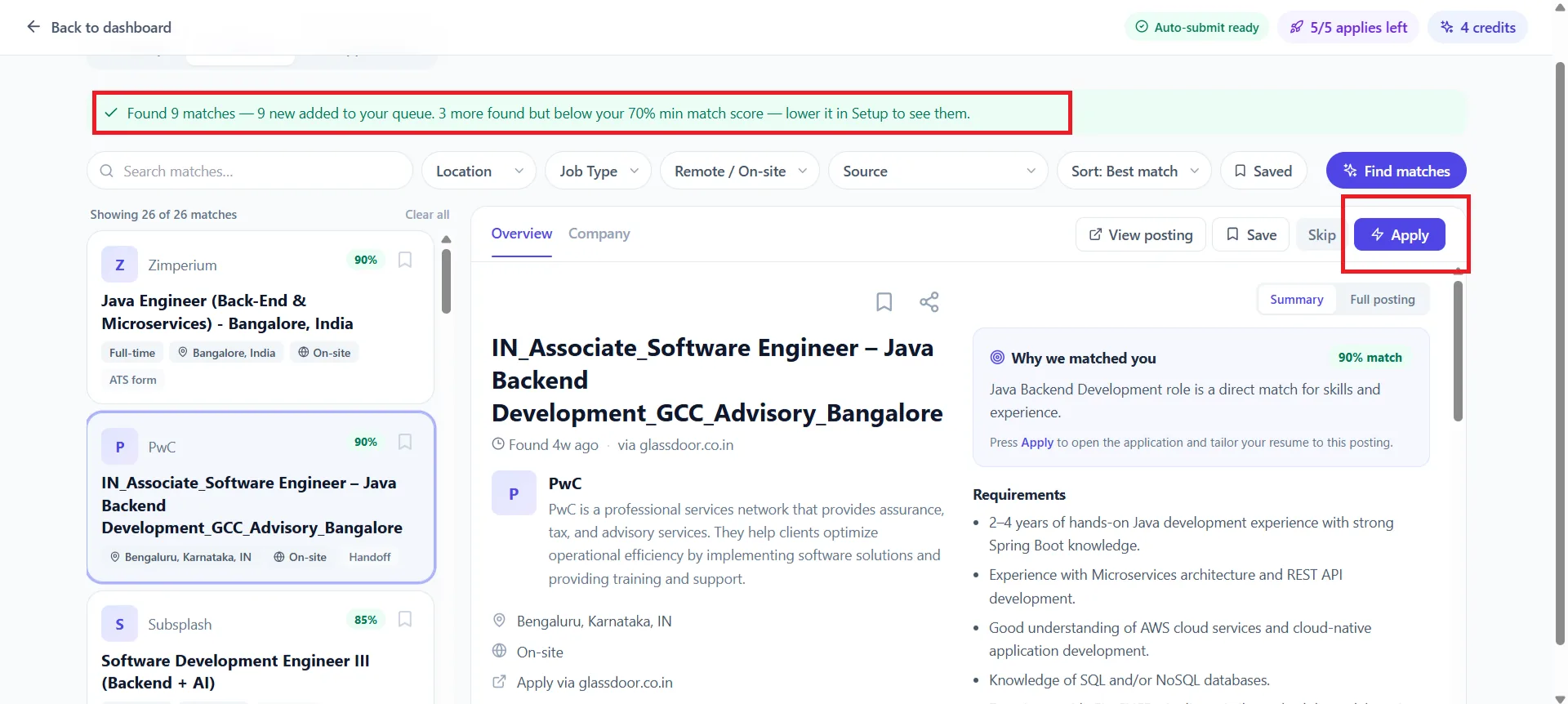
Matches ranked by score. Apply opens the employer page in a new tab. Step 8: Let the extension fill the form, then submit it yourself
The employer's application page opens in a new tab and the LastRound AI panel appears on the right with three tabs: Autofill, Keywords Score and Profile. Click Autofill this page. Filled fields are highlighted, the tailored resume is attached, and the status box reports what was filled and what still needs you. Check everything, then click the site's own Submit. Back in the web app, answer Did you apply? with Yes, I applied or Not yet.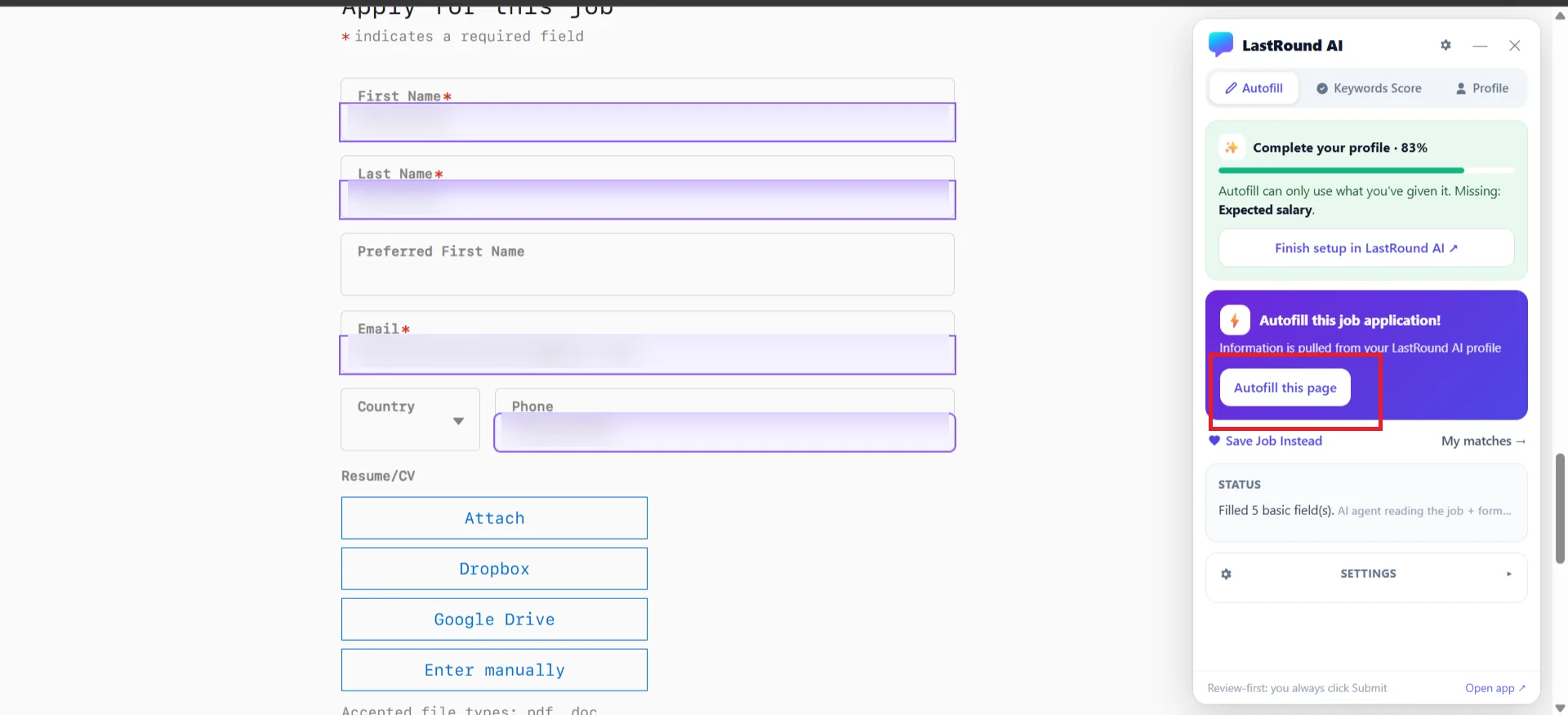
Review-first: the panel footer reminds you that you always click Submit. - LinkedIn Easy Apply and Indeed Quick Apply: the button reads Auto-fill & apply; the extension fills each step and stops at Submit unless you enabled auto-submit in the popup.
- Login walls and CAPTCHAs stop the flow on purpose. Sign in or solve it yourself, then click Autofill again.
- Sensitive questions (work authorisation, visa, demographics, salary history) are left for you unless you saved an answer yourself.
- Not a form page yet? The panel offers Save this job to add it to your queue for later.
Step 9: Track it on the Applications tab
Every prepared or submitted application is listed with its status. If a submission was not detected automatically, click I submitted and confirm. Applications that were opened but never sent do not use your allowance.
Auto-submit on LinkedIn and Indeed is your call
Auto-submitting on LinkedIn or Indeed may conflict with their terms of service. The extension keeps it off by default, paces actions like a human and enforces a daily cap. If you turn it on, keep the cap modest.
Still stuck?
Signed in? Open a ticket under Account → Support in the app. Otherwise use the contact form or email. Tell us what you tried, which page of this guide you were on, and your operating system or browser.